# Fix a ChatGPT or Claude connection
> What each message about your connected ChatGPT or Claude plan means, and how to get Ask Onsite answering with your plan again.
When a connected plan can't answer, Ask Onsite switches to Onsite's own models and uses your credits until the connection works again. This page helps you get it back on your plan.
You'll see the messages below in **Settings › AI connections**, or in Ask Onsite when your team has no credits left for Onsite to answer instead.
## Signed out or expired
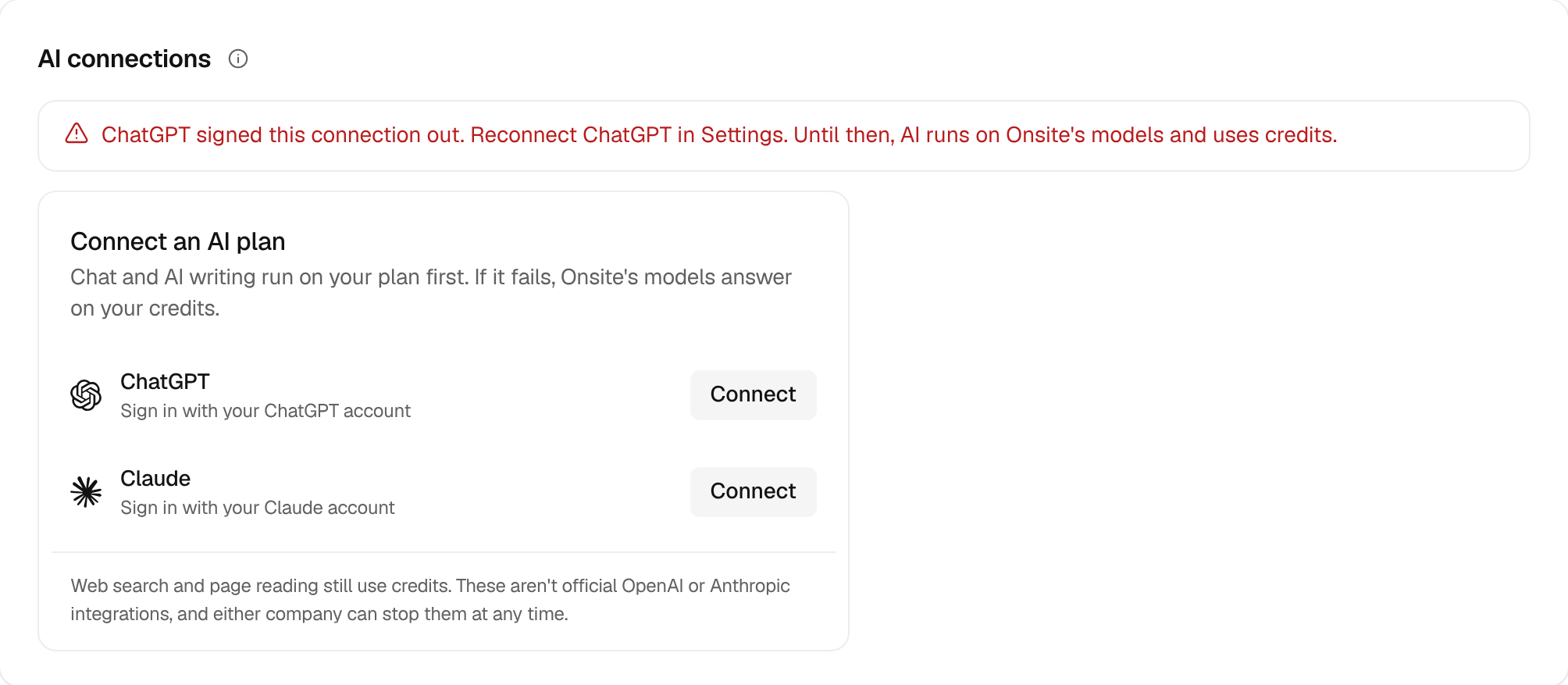
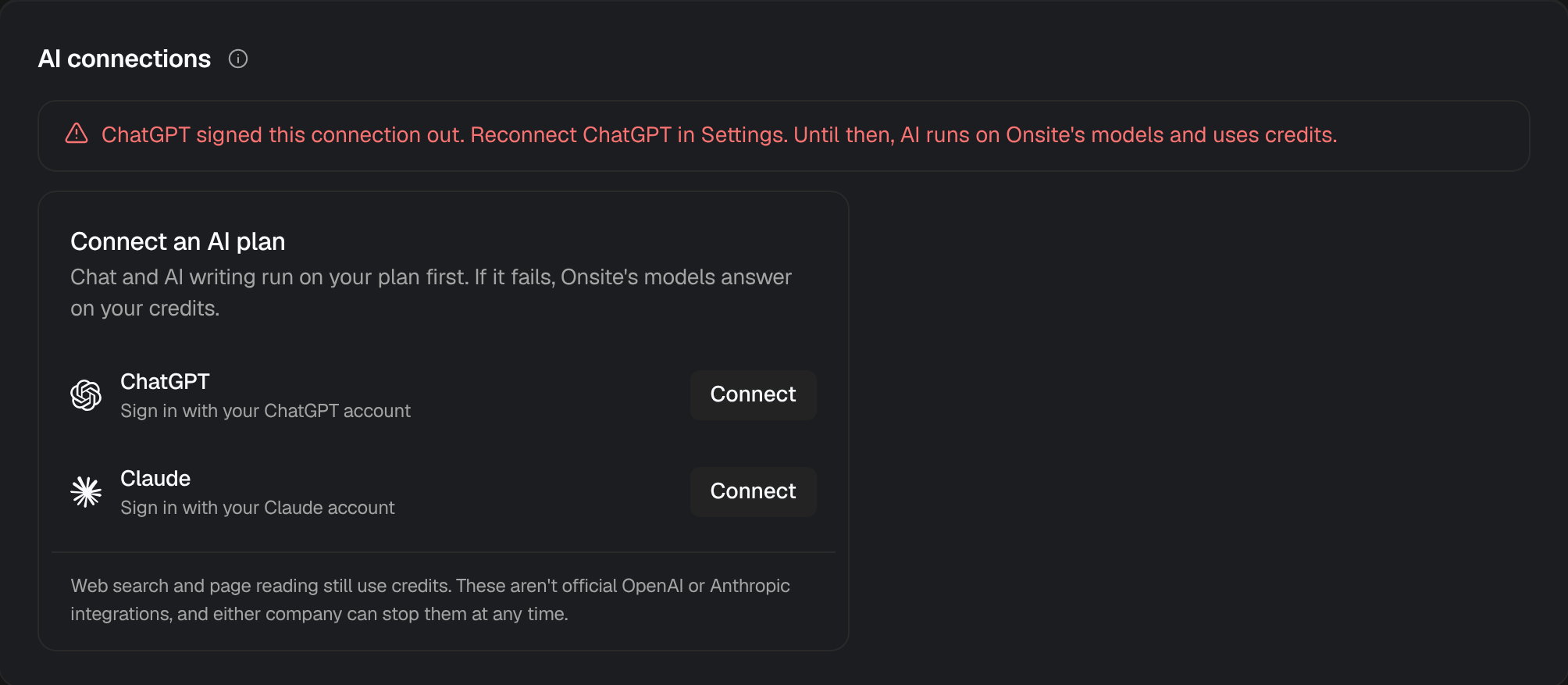 Your ChatGPT sign-in has ended. This can happen when you change your ChatGPT password or sign out of all devices.
Go to **Settings › AI connections**, choose **Connect** on the ChatGPT row, and [sign in again](/guides/ai-accounts/chatgpt#connect-chatgpt). Device code sign-in needs to be on in ChatGPT for this.
Your Claude sign-in has ended or was revoked. In **Settings › AI connections**, choose **Connected** on the Claude row, then **Disconnect**, and [connect Claude again](/guides/ai-accounts/claude#connect-claude).
A ChatGPT code works for 15 minutes. Choose **Connect** again and enter the new code on OpenAI's page straight away.
A Claude sign-in stays open for 10 minutes. Choose **Retry**, then sign in, copy the code and paste it back before the timer runs out.
## Plan limits
Your team has used up what your ChatGPT plan allows for now. Ask Onsite answers on credits until the limit resets. You can wait, choose a lighter model beside the send button in Ask Onsite, or move to a plan with higher limits.
Most often your Claude plan has reached its usage limit, and Ask Onsite answers on credits until it resets. If the limit isn't the reason, disconnect Claude and connect it again.
Your ChatGPT plan doesn't include this kind of use, or OpenAI has blocked it for your account or workspace. Check that you connected a Plus, Pro, Business, Enterprise or Edu plan. On a workspace, ask your ChatGPT admin whether device code sign-in is allowed.
## Wrong account or workspace
The ChatGPT row shows the email and plan it connected. If either is wrong, disconnect, then connect again. When OpenAI asks which workspace to use, pick the one with the plan. If it signs you straight in to the wrong account, sign out of ChatGPT in that browser first.
Disconnect Claude, then connect again. When Claude asks which organization to use, pick the one with the plan. If it signs you straight in to the wrong account, sign out of Claude in that browser first.
It's in ChatGPT under your name › **Settings › Security › App security**. On a Business, Enterprise or Edu workspace, an admin has to allow it before it shows or can be switched on.
## Ask Onsite isn't using my plan
If ChatGPT is connected too, ChatGPT answers first and Claude isn't used, even when ChatGPT is signed out. Disconnect ChatGPT to have Claude answer.
Searching the web and reading pages for you always use credits, even with a plan connected. The answer itself comes from your plan. If every answer uses credits, open **Settings › AI connections** and look for a warning on the ChatGPT or Claude row.
The model picker only shows while a ChatGPT plan is connected and working. With Claude, there's no model to pick.
## Permissions and availability
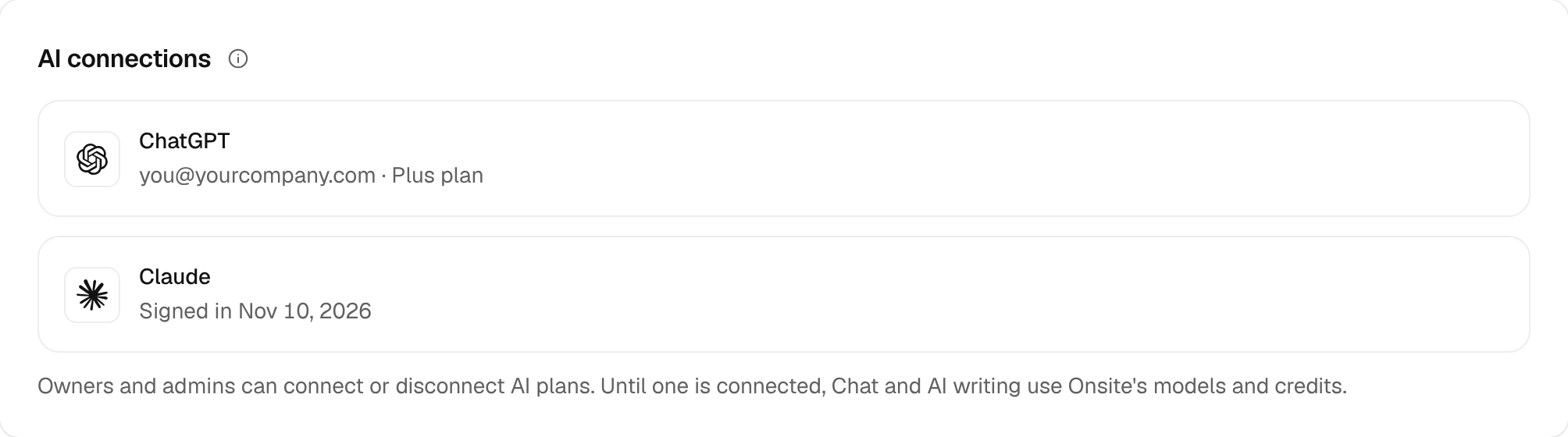
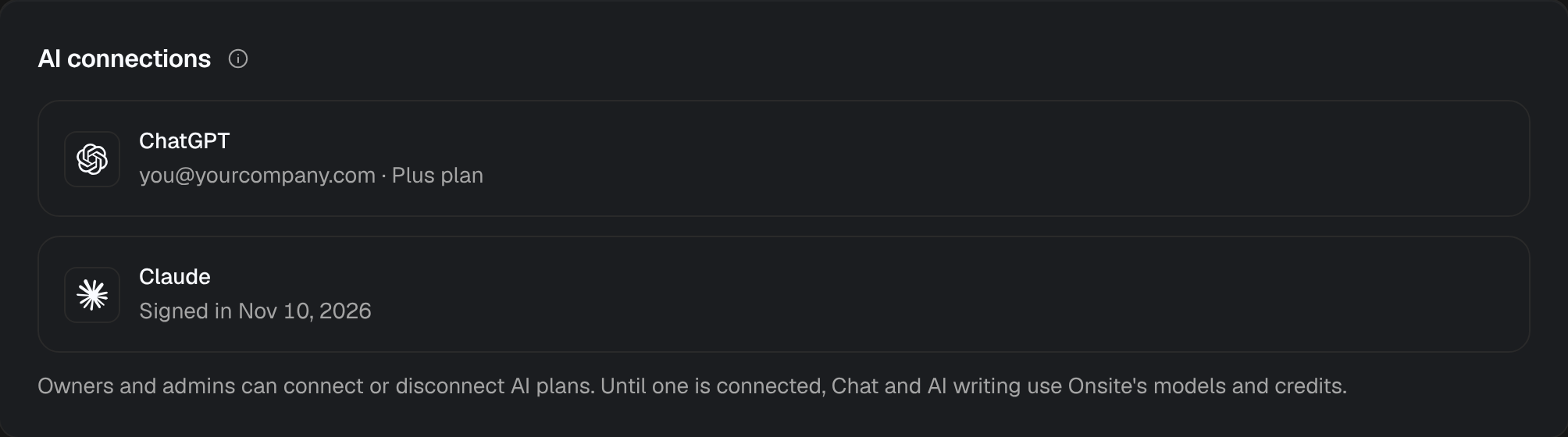 Only owners and admins of your Onsite team can connect or disconnect a plan. Everyone else sees which accounts are connected. Ask an owner or admin to connect one, or to [change your role](/guides/team-and-roles).
Connecting a plan is paused for a while. Ask Onsite keeps working on Onsite's own models and your credits. Check back later.
These connections aren't official OpenAI or Anthropic integrations, and either company can change or stop them at any time. Try disconnecting and connecting again. If that doesn't help, choose **Support** in Onsite's top bar to chat with us, and tell us which plan you use.
## Related
Step by step, with a code from Onsite.
Sign in to Claude and paste back its code.
ChatGPT and Claude plans you can connect.
What uses credits, and how many you get each month.