# Ask Onsite
> Ask questions about your sites in plain words, and let Onsite open the right report, explain what changed and make changes for you.
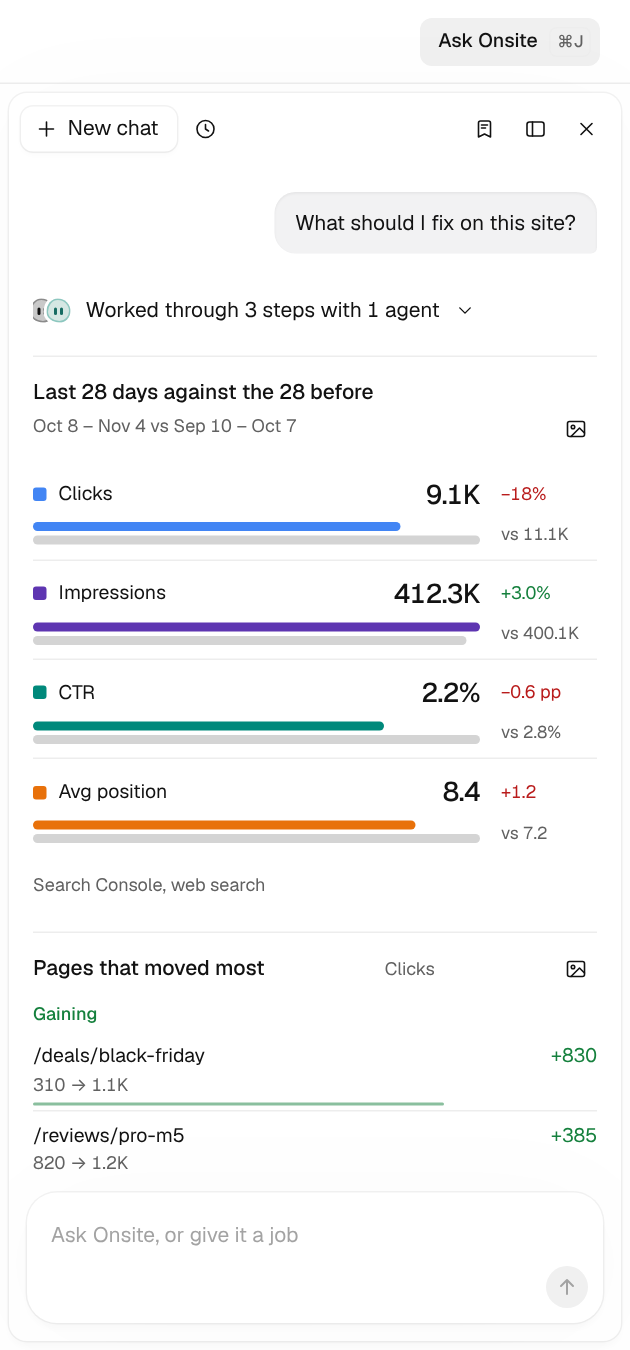
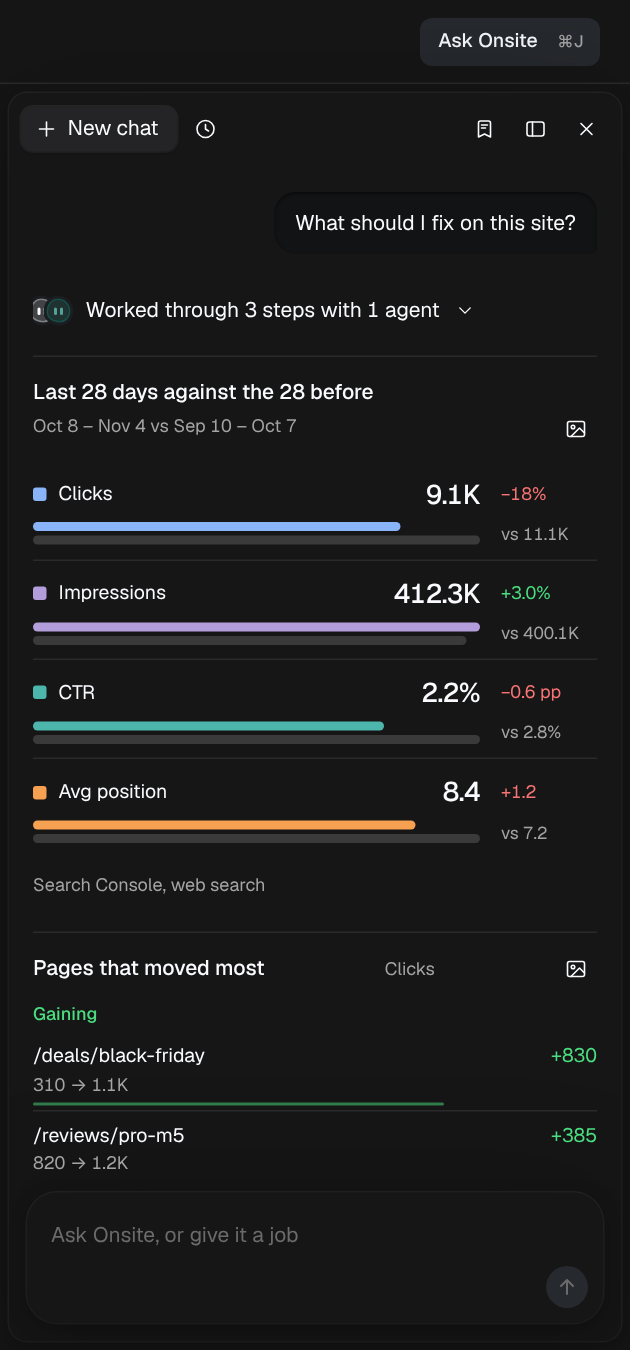
Ask Onsite is an SEO assistant that knows your sites. Ask it what happened, why, or what to do next, and it reads your data, opens the right report on your screen and explains it in plain words.
## Open Ask Onsite
Choose **Ask Onsite** in the sidebar, or press **⌘J** (**Ctrl+J** on Windows). It opens as a panel beside the page you're on and can see that page, so you can ask about what's in front of you.
- Drag the panel's edge to resize it, or dock it on the left or right.
- **Open in full page** gives the conversation the whole window.
- **Chat history** lists your earlier conversations. **New chat** starts a fresh one.
 ## What you can ask
Ask the way you'd ask a colleague. A few examples:
- "Why did clicks drop last week?"
- "Which pages lost the most traffic since the last Google update?"
- "Find keywords on page two that are worth working on."
- "Compare this month with the same month last year for the blog."
- "Set up Slack alerts for this site."
- "Which AI crawlers read our pricing page this month?"
Ask about one site and one period at a time for the sharpest answers.
## What it can do
Ask Onsite works with everything you can see in Onsite: your sites, Search Console, GA4, Insights, alerts, indexing and settings.
- **Reads your data** and answers with the numbers, a chart or a table.
- **Opens reports and sets filters** on your screen, so you see the evidence it used.
- **Searches Google and reads web pages**, like your competitors' pages or a result for one of your keywords. It lists its **Sources** under the answer.
- **Makes changes your role allows**, like adding a bucket, setting up alerts or changing site settings. Before it changes saved data or starts something, it asks **Allow Onsite to continue?** and waits for you.
While it works you can see each step it takes. Choose **Stop** at any time. If an answer stops partway, choose **Continue investigation** to pick up where it left off.
## Memory
Onsite remembers useful things from your chats, like how you like answers or what a site sells, so you don't have to repeat yourself. Open **Memory** to see what it keeps:
- **About you**: your preferences.
- **About this website**: notes about the site you're on. They stay with that site.
Choose **Forget** on a note to remove it, or **Clear all memory**. Memory is private to you in this team. Traffic numbers always come from current reports, never from memory.
To set the language Onsite answers in, or give it standing instructions, open **Settings › AI preferences**.
## Who can use it and what it costs
Owners and admins can always use Ask Onsite. Contributors and viewers need the **Ask Onsite and AI** permission; see [Team and roles](/guides/team-and-roles).
Questions use your team's AI credits. If you connect your own ChatGPT or Claude plan, chat answers use that plan instead; searching Google and reading pages still use credits. See [Billing and credits](/guides/billing-and-credits) and [AI accounts](/guides/ai-accounts).
## If something looks wrong
Choose **Continue investigation**, or ask again. Narrowing the question to one site and one period helps.
Wait a moment, then ask again.
You may not have the **Ask Onsite and AI** permission, or your team may be out of credits. Ask an owner or admin.
Ask it to show the report it used, then check the period and filters on screen. You can always tell it what's wrong and ask it to look again.
## Related
Use your own ChatGPT or Claude plan.
How credits work.
Use your Onsite data from Claude, ChatGPT or Cursor.