# Crawlers
> See which AI assistants, search engines and other bots fetch your pages, how often, and what your server tells them.
AI assistants and search engines read your pages before they can show or quote them. Crawlers shows every request they make to your site: who's crawling, which pages they fetch, and whether your server gave them the page or an error.
[Open Crawlers](https://onsite.so/go/crawlers)
A crawler fetching a page shows it was read. It doesn't prove your site was cited in an answer or visited by a person.
## Connect your site
Crawlers don't run the scripts in your pages, so an analytics tag can't see them. Onsite counts them where your site is served instead: your CDN, your host or your server.
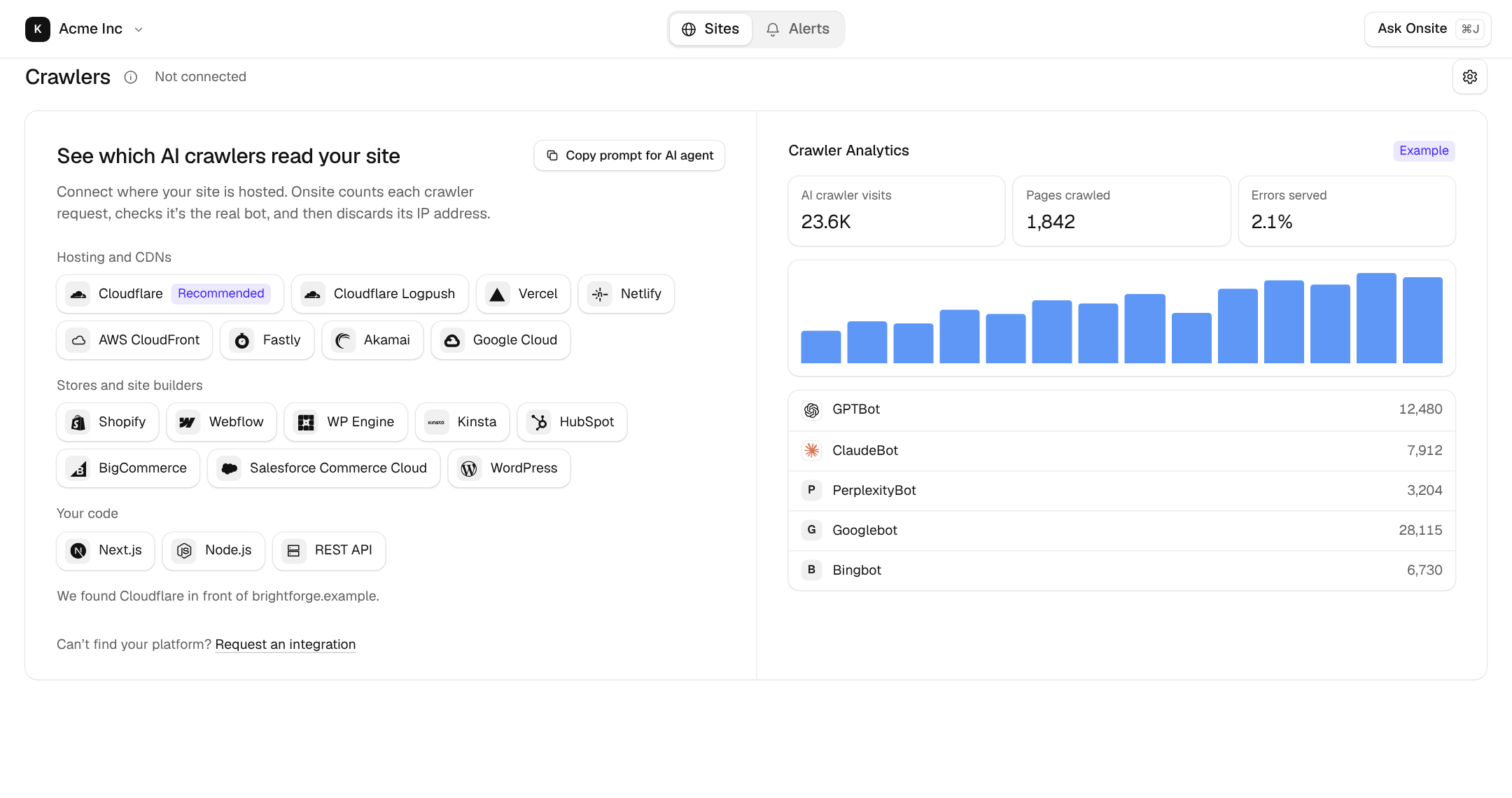
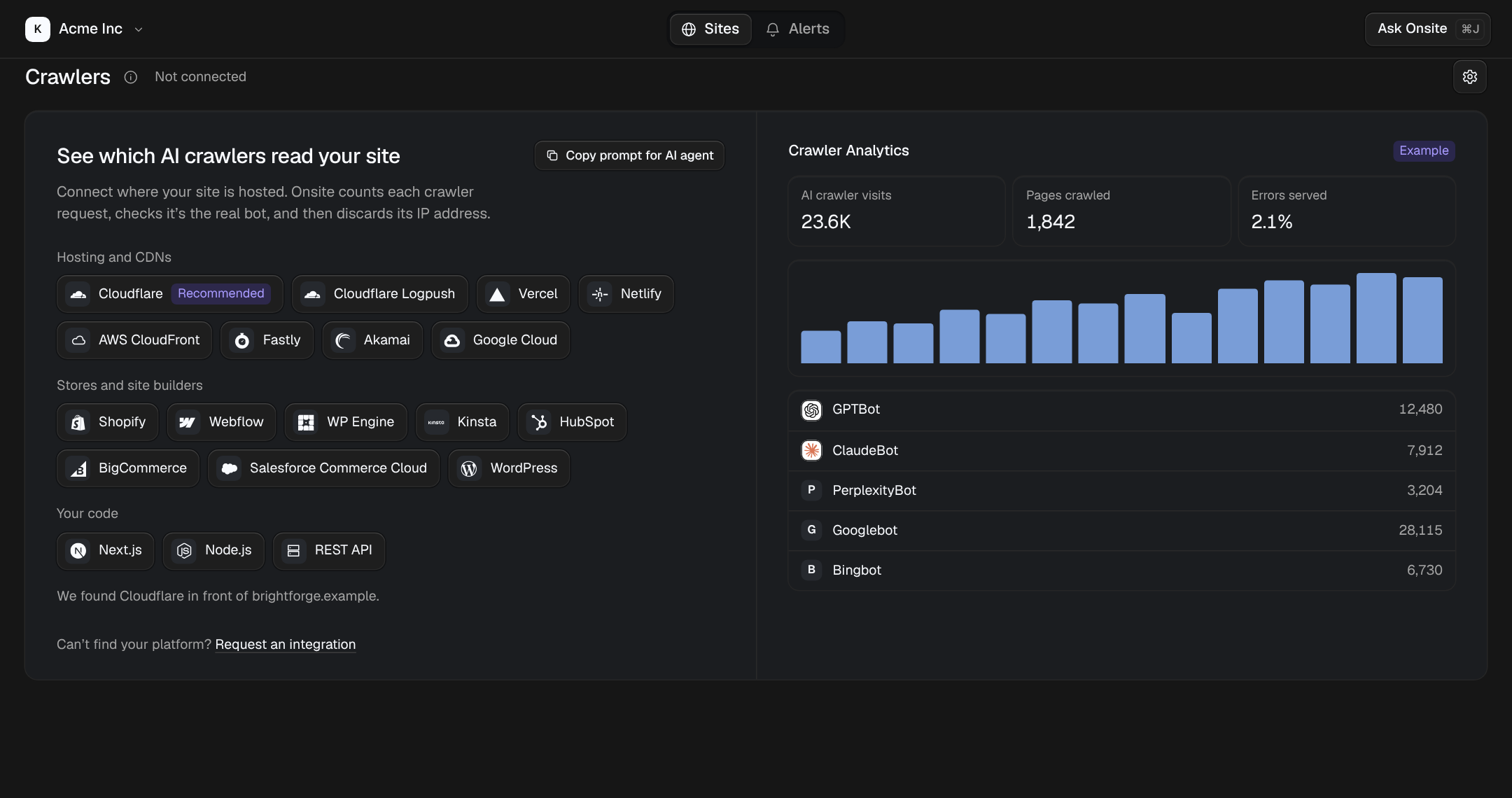
Onsite checks the site and suggests where it's hosted, like *We found Cloudflare in front of www.example.com*.
Choose your platform and follow its short guide. Each guide says which plan it needs.
Choose which hostnames to count, like `www.example.com` and `blog.example.com`. They must belong to the site's Search Console property.
Choose **Send a test request** to check that requests reach Onsite. The first crawler requests show up soon after.
| Where your site runs | How it connects |
|---|---|
| **Cloudflare** (any plan) | Paste a Cloudflare API token and choose **Install Worker**. Onsite installs a small Worker, then discards the token. Your pages are served as before. Prefer to do it yourself? Choose **Use the Worker script instead**. |
| **Cloudflare Logpush**, **Fastly**, **Akamai**, **Vercel**, **Netlify**, **AWS CloudFront**, **Google Cloud** | Send your request logs to Onsite from the platform's own log settings. |
| **Next.js**, **Node.js**, **WordPress** | Add a small piece of middleware or a plugin to your site. |
| **REST API** | Send request log lines from any server you control. |
| **Shopify**, **Webflow**, **WP Engine**, **Kinsta**, **HubSpot**, **BigCommerce**, **Salesforce Commerce Cloud** | Put your own Cloudflare account in front with Cloudflare for SaaS (the free plan works), then use the Cloudflare option. |
Onsite shows any key once. Copy it straight into your platform's secret settings.
Working with an AI coding agent? Choose **Copy prompt for AI agent** and paste it in. It describes your site and every way to connect it, so the agent can set it up with you. It holds no keys.
 ## What's on the page
Pick the period at the top, from **Today** to **Last 6 months**, and what to compare it with. The tab updates **Live** while it's open.
- **Crawler types**: **AI assistants**, **Search**, **AI training**, **SEO tools**, **Previews** and **Scripts**, with the request count for each. Pick one to see only that kind.
- **Requests over time**: a line for each kind, or for the busiest crawlers once you pick a kind. Show the total, stack the lines, or draw errors and unverified requests.
- **Who's crawling**: each company's crawlers, with their requests, the URLs they fetched, the share that's verified, the change and when they were last seen. Open a company to see its separate bots, copy their user agents or copy a robots.txt rule that blocks them.
- **Responses**: what your server answered, grouped as **Successful**, **Redirects**, **Not found**, **Blocked** and **Server errors**, with the URL that caused most of each.
- **URLs**: every URL crawlers fetched, with its requests, crawlers, last crawl, Google index status, Search Console clicks and GA4 visits from AI assistants. Switch to **Rising**, **Falling** or **Not crawled**.
- **Latest requests**: each request as it arrives, with its time, crawler, status, URL and whether it's verified.
Select a crawler, a response group or a URL to filter the whole tab by it. **Export** sends the current view to CSV, Excel or Google Sheets.
## The kinds of crawler
| Kind | What it does |
|---|---|
| **AI assistants** | Fetches pages to answer someone's question, like OAI-SearchBot or Perplexity's crawler. These are the ones that can lead to a citation. |
| **Search** | Builds a search index, like Googlebot and Bingbot. |
| **AI training** | Collects pages to train AI models, like GPTBot. It doesn't answer anyone's question. |
| **SEO tools** | Audits sites or builds SEO datasets. |
| **Previews** | Makes link previews when someone shares a URL in a chat or social app. |
| **Scripts** | Other automated clients, like uptime monitors. |
## Verified requests
Anyone can claim to be Googlebot. Onsite checks each request against the addresses the crawler's owner publishes, then discards the IP address.
- **Verified** means the request came from the crawler's published addresses.
- **Unverified** means it didn't, so it may be a bot pretending.
- **Can't check** means the crawler's owner doesn't publish its addresses.
Turn on **Hide unverified** to leave out requests that failed the check.
## If something looks wrong
The connection is set up, but no requests have arrived yet. Open the tab's **Settings** and choose **Test connection**. If the test doesn't arrive, check the installation on your platform.
Choose **Not crawled** under **URLs** to see the pages no crawler fetched in the period. Check that the page is linked from your site and listed in a sitemap.
Select the response group to see which crawlers and URLs it affects. A crawler that keeps hitting a redirect or a 404 is reading a URL you've moved or removed.
Logs are kept for 180 days, and start on the day you connected. Pick dates within that history.
## Related
See the visits AI answers send you.
Check whether Google indexed the pages it crawled.
Bing's own view of Bingbot's crawl.