# Rank tracking
> Follow where your most important keywords rank in Google, day by day, and what each move does to your clicks.
Rank tracking shows where the keywords you care about rank in Google each day, so you see straight away when one climbs or slips, and what it does to your clicks. Positions come from your own Search Console data, so they're the positions real searchers saw.
[Open Rank tracking](https://onsite.so/go/rank-tracking)
 ## What's tracked
Keywords are kept in buckets, and every bucket shows as a chip at the top of the keyword table:
- **Priority** holds the keywords you care about most.
- **Your [buckets](/guides/settings/buckets)**, like *Pricing* or *Product guides*. Each one tracks its top keywords by its rules, plus any you put in it by hand. A bucket that tracks by its rules is marked **Auto**.
- **All** shows every keyword you track.
Each chip shows how many keywords the bucket holds. Hover it to see how many are **live**, meaning Google gave them a position in the last week. Pick a chip to see only that bucket.
Searches for your own brand stay out of buckets, so rank tracking shows how you do with people who don't know you yet. See [Branded keywords](/guides/settings/branded-keywords).
## Read the summary
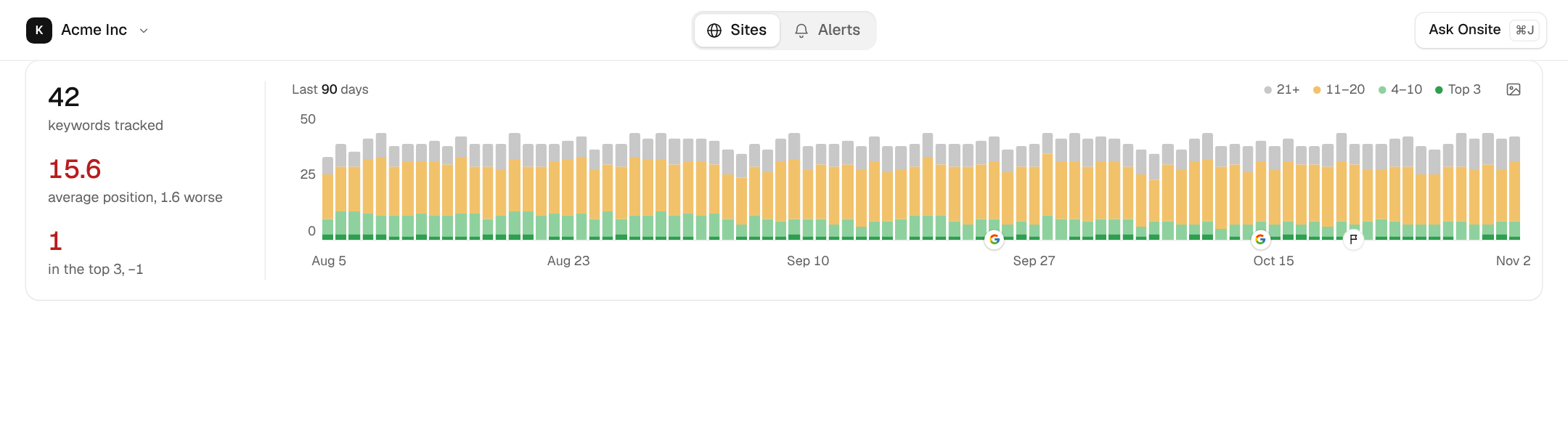
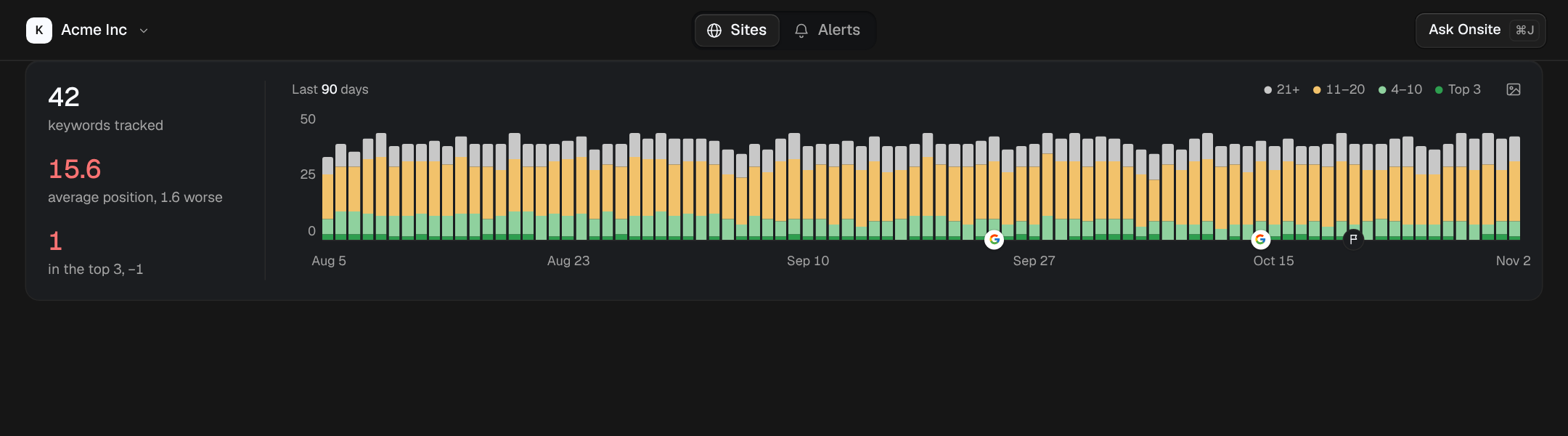
The summary at the top covers everything you track, or the bucket you picked:
- **Keywords tracked**.
- **Average position**, and how far it moved over the range.
- **In the top 3**, and how many joined or left.
- A chart of each day's keywords by position band: Top 3, 4 to 10, 11 to 20, and 21 or lower.
Pick **7 days**, **28 days** or **3 months**. The summary, the table and each keyword's history all use that range, so their figures agree.
## Read the table
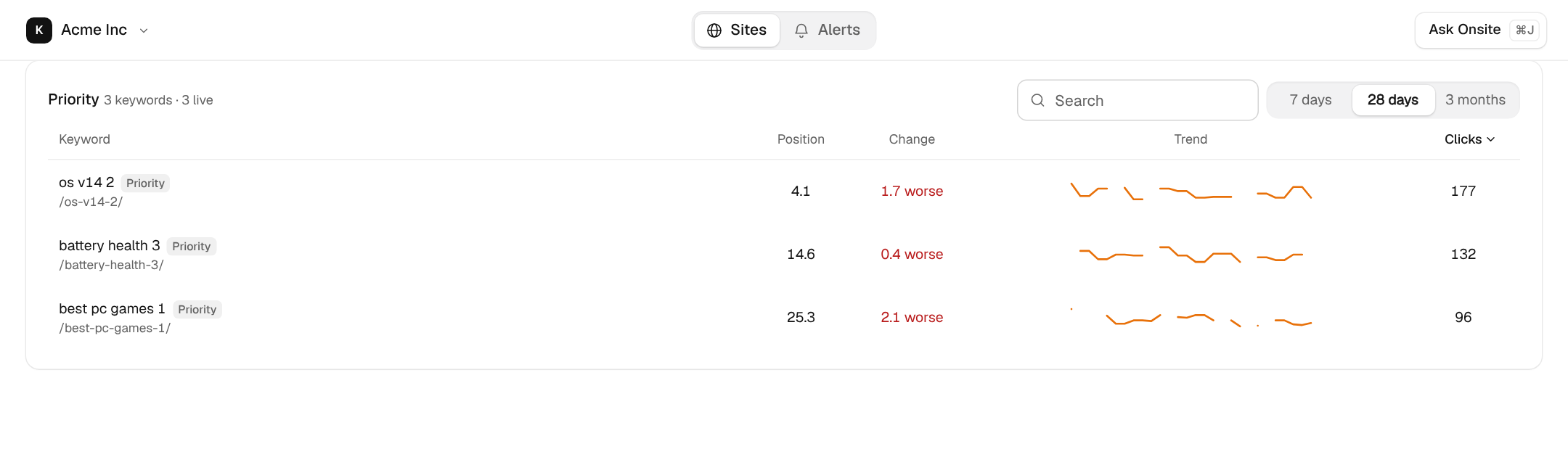
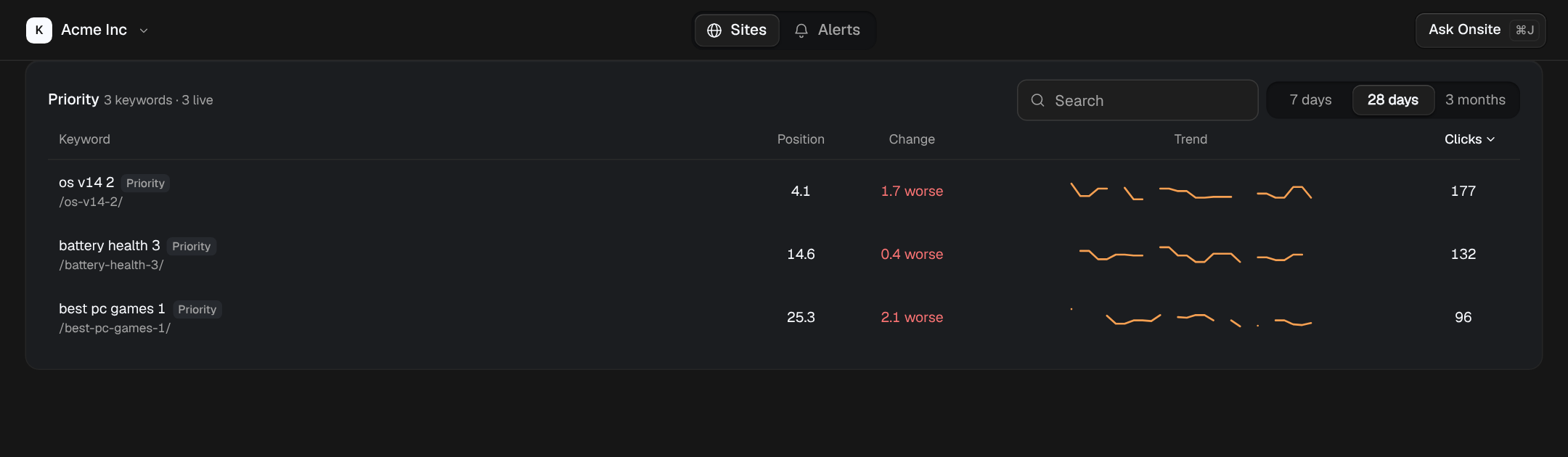
The table has a row for every keyword. Under **All**, each keyword shows its bucket. Under a bucket, it shows the page that ranks for it.
| Column | What it means |
|---|---|
| **Position** | The keyword's average position over the last 7 days of the range. |
| **Change** | How far it moved against the first 7 days of the range. A lower position is better, so moves read as **better** or **worse**. |
| **Trend** | Its position each day, best at the top. A gap is a day Google gave it no position. Switch the trend to clicks or impressions. |
| **Best** | Its best weekly position in the range. |
| **Clicks** | Clicks from Google over the range. |
Search finds a keyword by its words, its page or its bucket. Choose a column heading to sort. **Export** sends the table to CSV, Excel or Google Sheets, with each keyword's best position and impressions.
A keyword marked **No data yet** has no Search Console clicks or impressions so far. It stays tracked and fills in once Google shows your site for it.
 ## Track more keywords
Choose **Add keywords** at the top of Rank tracking.
Tick keywords from your Search Console data for the last 28 days, or type or paste your own, one per line. You can add keywords Search Console hasn't shown yet.
Under **Put in**, choose a bucket, or **New bucket…** to name a new one.
Choose **Track**. You can add up to 100 at a time.
On the Overview, in a report or in a sheet, hover a keyword and choose the **target** icon. Pick a bucket, or **New bucket…** to name one and put the keyword in it.
The same menu moves a tracked keyword to another bucket or stops tracking it.
To stop tracking a keyword, choose **Stop tracking** on its row.
## Make a bucket
Choose **New bucket** beside the chips. Give it a name, tick the keywords to put in it, then choose **Create bucket**. The bucket also shows in **Settings › Buckets**, where you can give it rules so it picks up keywords on its own.
## See one keyword over time
Select a keyword in the table to open its history: where it ranks now, how far it moved, its best position, how many days it ranked, and a chart of its position each day. A gap in the line is a day Google gave it no position.
## If something looks wrong
Search Console has no clicks or impressions for it yet. That's common for a keyword you typed in by hand. It fills in once Google shows your site for it.
The site's Search Console data stopped on that date, so positions and clicks are as of that day. They catch up when the data does. The Overview says what's wrong.
Each bucket needs its own name, and Priority is reserved. Pick another name.
Onsite uses Search Console's average position for real searches across locations and devices. A rank checker looks at one search from one place, so the two often differ by a few places.
## Related
Group keywords by subject and track each group.
Get told when keywords leave or reach the top 10.
Find keywords worth tracking, close to page one.
Every keyword the site ranks for, in any period.