# Buckets
> Group your searches by subject, so you see how a whole topic is doing in Google and track its keywords together.
Buckets show how a whole subject is doing in search, not one keyword at a time. Put a subject's searches together, like every search about pricing in *Pricing* or every question about setup in *Getting started*, and see which subjects grow and which need attention.
[Open Buckets](https://onsite.so/go/settings/buckets)
 ## See your buckets
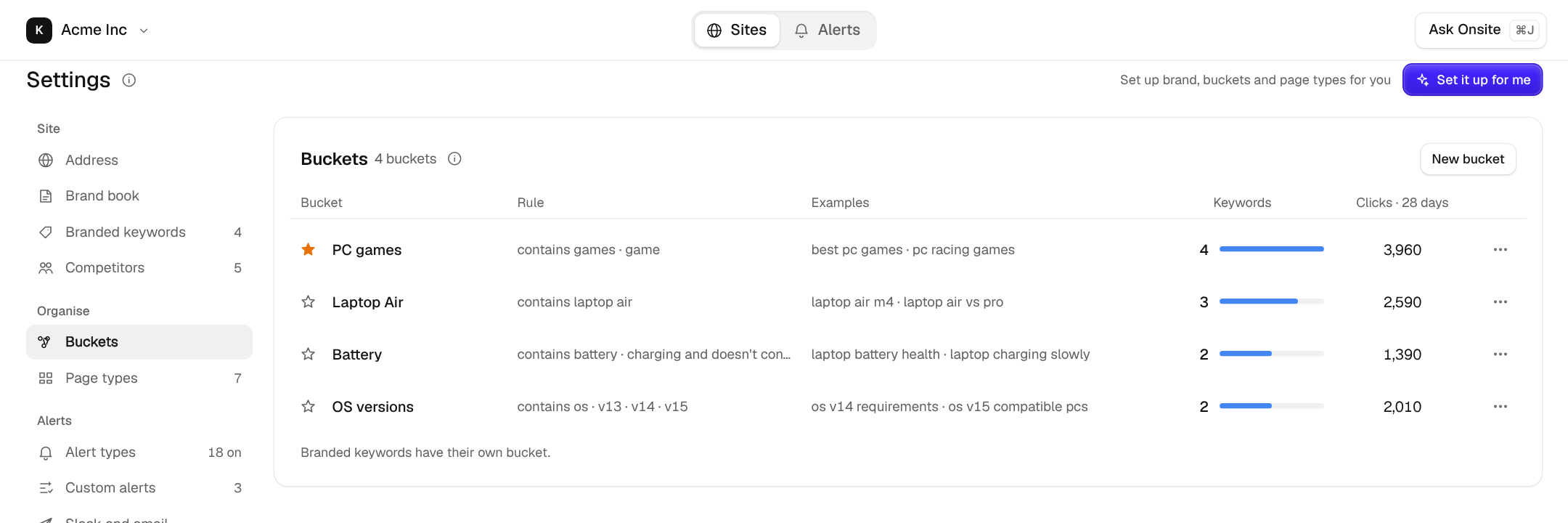
Open the site, then **Settings › Buckets**. Each bucket shows its rule, how many keywords it holds and the clicks they brought in the last 28 days.
## Let the Onsite agent make them
Choose **Sort with Onsite agent**. The agent names the buckets and sorts every keyword by the page it lands on. It takes about a minute and uses credits.
If the site already has buckets, it asks before replacing them. If a sort can't finish, nothing changes. **Sort again with Onsite agent** runs it again later.
## Make a bucket
Choose **New bucket** and give it a **Name**, like *Pricing*.
Under **Match rules**, add the words that belong to the subject, like `price, pricing, cost`. Paste several at once, or type one and press Enter.
**What it matches** shows the searches it picks up and the clicks they bring, so you can spot anything missing or out of place.
Choose **Create bucket**.
### More precise rules
- Choose **Add condition** to combine rules, then **Any condition** or **Every condition**.
- Use the menu on a rule for **Is exactly**, **Starts with**, **Ends with**, **Matches regex** and more.
- To leave searches out, pick **Doesn't contain any of**. For example, a *Pricing* bucket can include `price` and `cost` but leave out `jobs`.
## When a search fits more than one bucket
Each search belongs to one bucket, so nothing is counted twice. A keyword joins the first bucket it matches, in the order of your list.
If some searches are already in another bucket when you make a new one, you choose where they go: **Keep in** the other bucket, or **Use new bucket** to move them. Future matches follow the same choice.
## Edit, star or delete a bucket
- Select a bucket's name to edit it.
- The **…** menu on its row has **Edit**, **Show in the dashboard** and **Delete**.
- The **star** marks a bucket as a priority, so your starred buckets show together in the dashboard.
Deleting a bucket only removes the bucket; your data stays. Keywords you put in it by hand move to **Priority** in Rank tracking.
## Where you'll see them
- **On the Overview**, the **Buckets** card shows each subject's clicks and trend. Choose **Rising** or **Falling** to see what's moving.
- **In Filter**, choose **Buckets** to see the whole dashboard for one subject.
- **In Rank tracking**, each bucket tracks its own keywords. See [Rank tracking](/guides/rank-tracking).
- **In Insights**, reports like Striking distance can look at one bucket.
## Good to know
- New searches that fit join the bucket on their own, and past data counts too.
- Searches for your own brand stay out of buckets. See [Branded keywords](/guides/settings/branded-keywords).
- A bucket can also hold keywords you put in it by hand from Rank tracking. A bucket with no rules holds only those.
- Buckets sort **searches**. To sort **pages**, use [Page types](/guides/settings/page-types).
## Related
Follow each bucket's keywords day by day.
Group pages by kind instead.