# Sharing and reports
> Share a view with your team, give clients a read-only link, send a chart as a picture, and export any table.
Everything you see in Onsite can leave it: as a link for a teammate, a read-only page for a client, a picture of a chart, a password-protected report or a spreadsheet.
## Share a view with your team
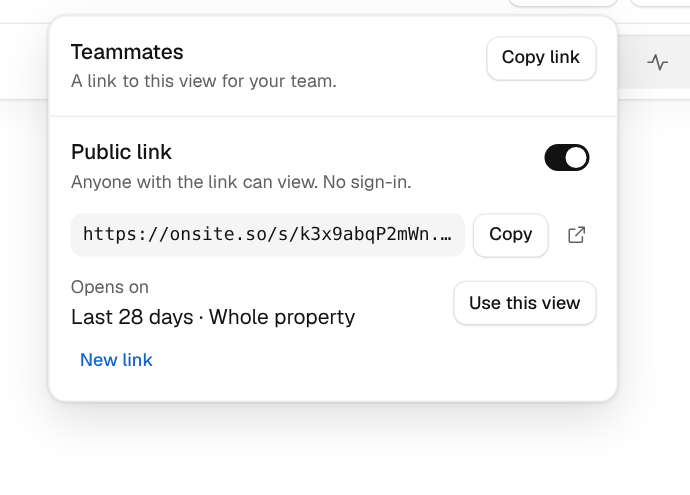
Choose **Share** on the Overview, then **Copy link** under **Teammates**. The link opens the Overview with the same period, comparison and filters. Teammates need access to the site to open it.
**Copy link to this view** in the **Filter** menu does the same.
 ## Give someone a public link
A public link lets anyone see a site's Overview without signing in. It's a good fit for clients and stakeholders who don't need an Onsite account.
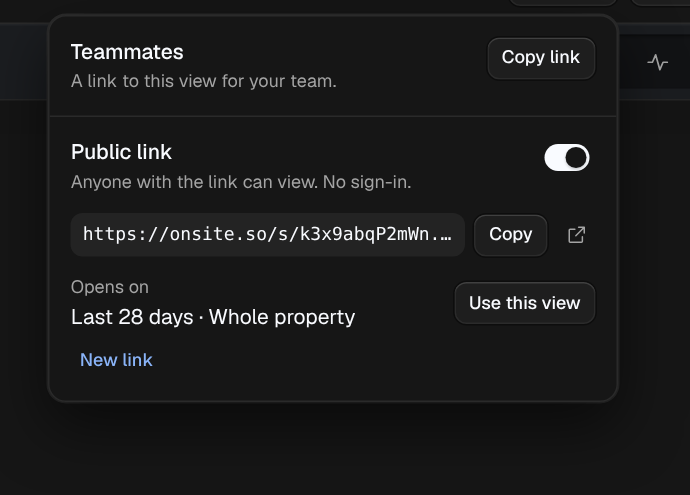
Choose **Share** on the Overview and turn on **Public link**.
Set up the period and filters you want them to see, then choose **Use this view** under **Opens on**.
Copy the link and send it. Viewers can change the period and filters for themselves, and **Reset view** takes them back to yours.
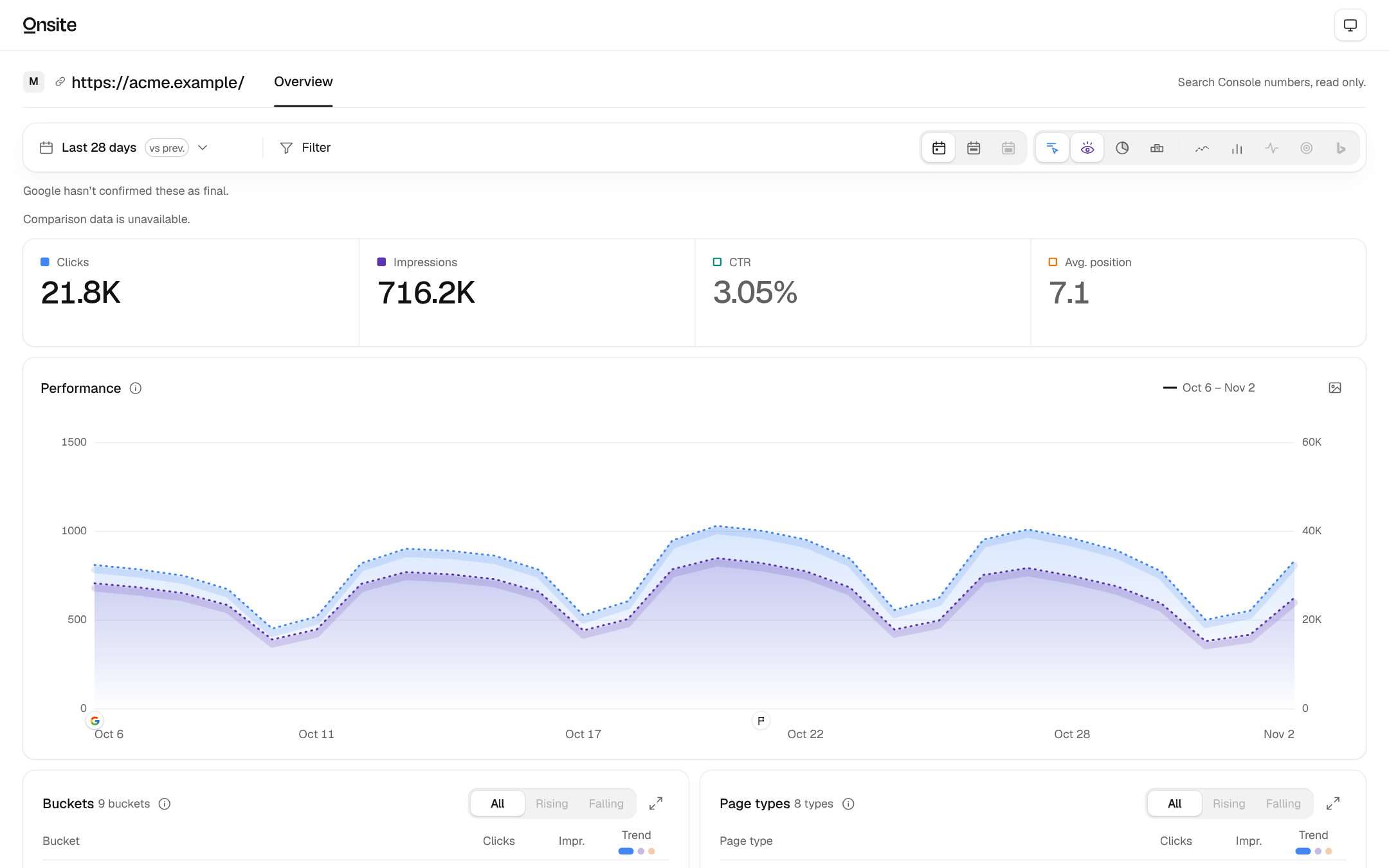
A public link shows Search Console numbers only, read only. Your GA4, Bing, alerts and settings stay private.
To stop a link, turn **Public link** off. To replace it, choose **New link**; the old link stops working at once. Only people who can edit a site can change its public link, and only owners and admins can turn public links on or off. **Settings › Public links** lists every site's link in one place.
 ## Share a chart as a picture
Choose **Share chart** on a chart to make a picture of it, ready for a slide, a report or a post.
- **Style**: **As on page**, **Headline**, **Figures**, **Two metrics** or **Bars**.
- **Format**: **Original**, **Landscape**, **Square**, **Portrait** or **Story**.
- **Lead with** the figure that matters, and choose whether to compare with the last period.
- **Background** and **Chart** set the colors. Turn off **Show website** to leave the site's name out.
Choose **Copy** to paste it anywhere, or **Download** for a PNG.
**Copy link** gives the picture its own web page that anyone with the link can see. Remove it in **Settings › Public links** to stop it at once.
## Share a report behind a password
Some reports, like [Content decay](/guides/insights#content-decay), can be shared as a snapshot that opens with a password.
Give it a name your client will recognise.
**Link works for** 7, 30 or 90 days, or **No limit**. Then choose **Create link**.
The password is shown once, so copy it now. Send it separately from the link.
**Shared links** on the report lists each link with its views and when it ends. Choose **Stop sharing** to turn one off.
## Export a table
Choose **Export** on any table to download what you see:
| Format | What you get |
|---|---|
| **CSV** | A file that opens anywhere. |
| **Excel** | An .xlsx file with a frozen header row. |
| **Google Sheets** | A new sheet in your Google Drive. The first time, choose **Allow** so Onsite can create sheets. |
For a table larger than the page shows, use **Every row** to export all of it, up to 100,000 rows. Full exports use credits. They run in the background: the **Exports** tray at the top shows their progress and keeps the files for 7 days.
## If something looks wrong
The link was turned off or replaced with a new one. Ask whoever shared it for the new link.
The password is shown once, to the person who created the link. Ask them for it, or ask them to make a new link.
Choose **Allow** when Onsite asks to create sheets in Drive, then export again. Very large tables are better as CSV.
## Related
Set up the view you want to share.
Give someone their own sign-in instead.
Reports you can export or share.