# Sites and groups
> Add your Search Console sites, see them all on one page, and sort them into groups, pins and priorities.
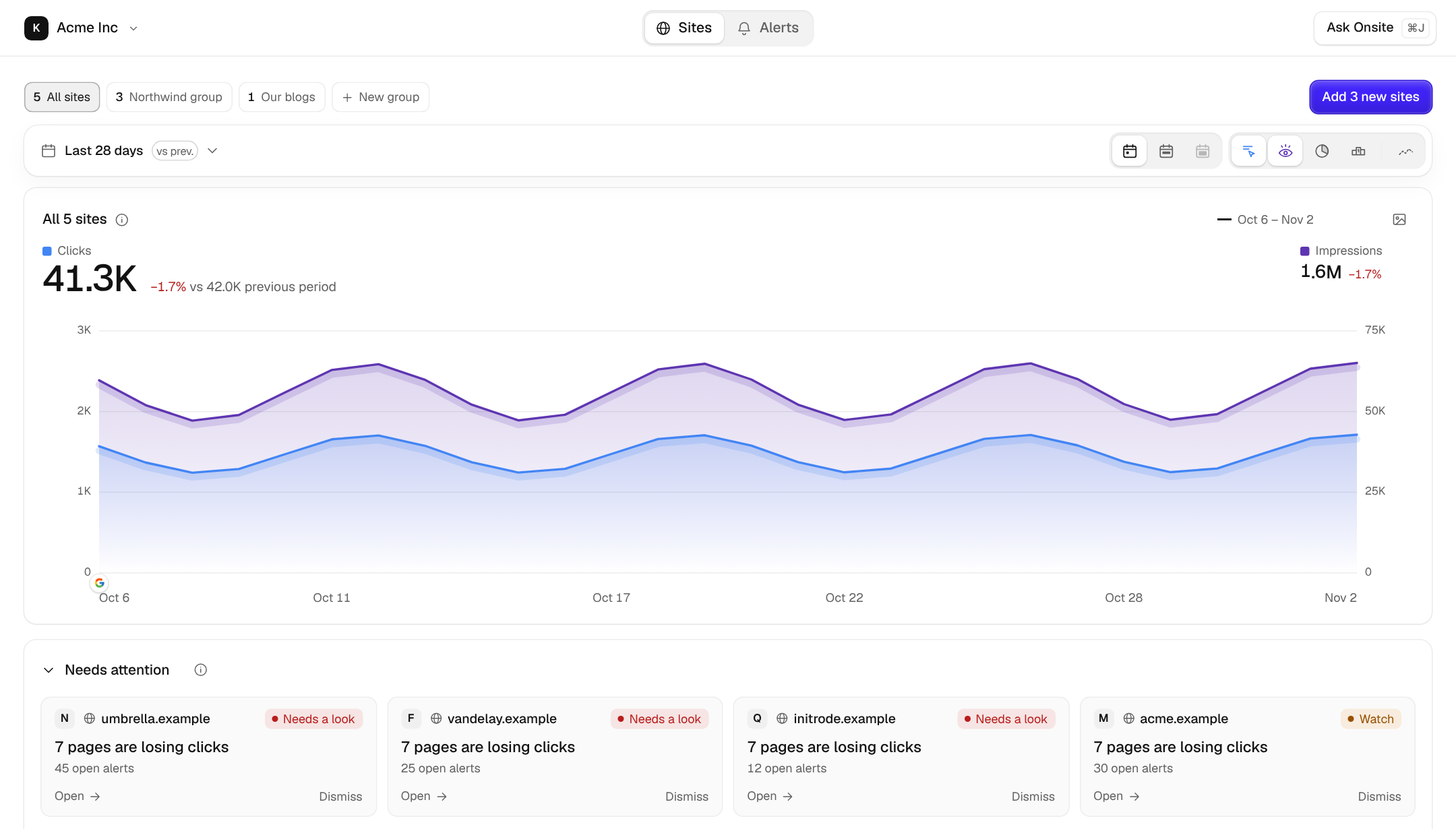
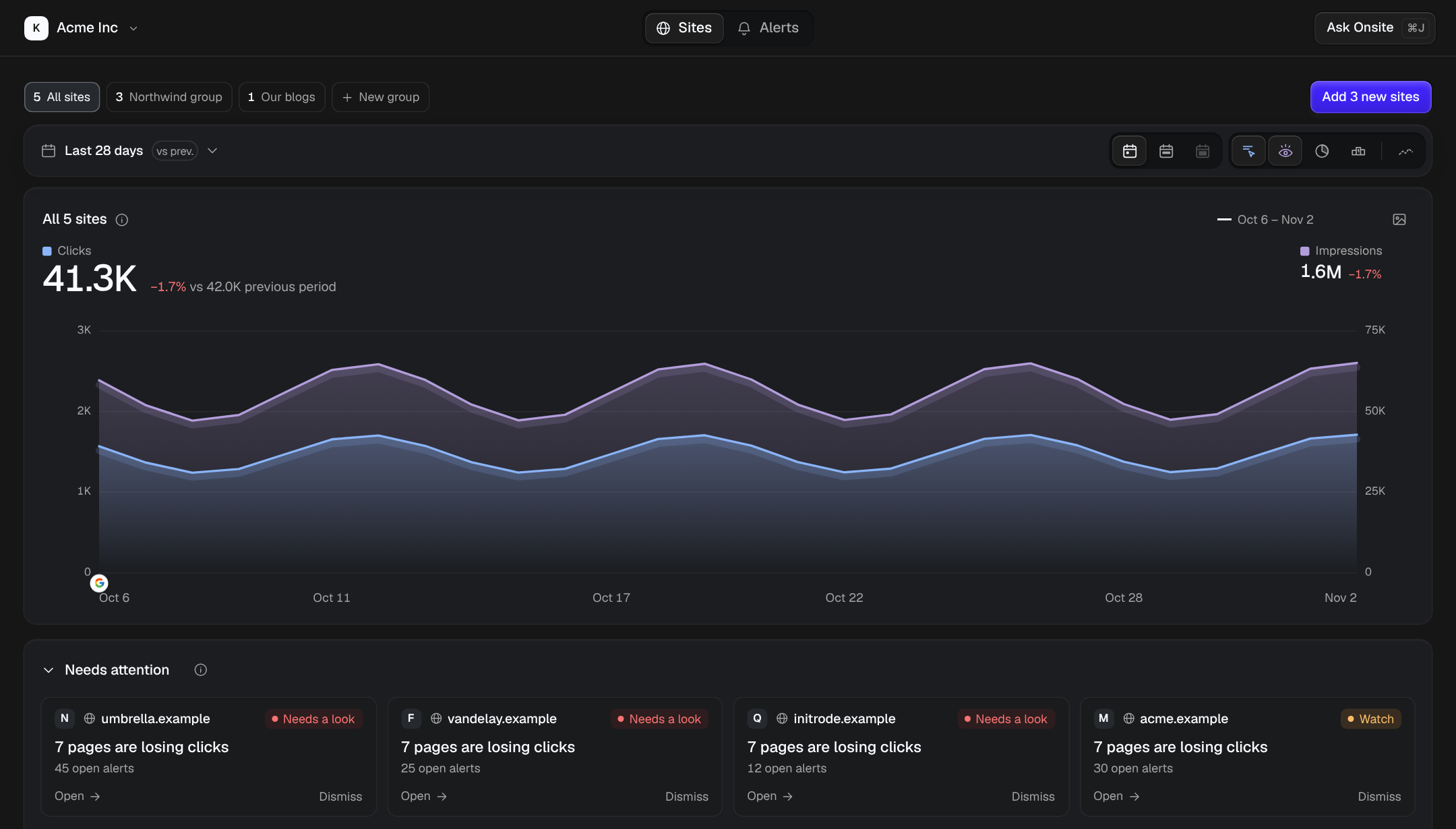
**All sites** is the first page you see in Onsite. It shows every site your team has, added together on one chart, with a card or a row for each site so you can spot the ones that need you.
[Open All sites](https://onsite.so/sites)
 ## Add a site
Onsite reads your sites from Search Console, so a site needs a Search Console property first.
On **All sites**, choose **Add site**.
Pick a Google account, then the Search Console property. A **Domain property** covers every subdomain and protocol, like `example.com` and `shop.example.com`. A **URL-prefix property** covers one address, like `https://www.example.com/`.
The address is how the site appears in Onsite links, like `/sites/example`. Pick a group: **Clients**, **Owned** or **Watching**. You can change both later.
Tick **Pin to the top of All sites** to keep it in view. Then choose **Add site**.
If a property you expect isn't listed, the Google account can't see it. Choose **Link another Google account** and pick one that has access in Search Console. See [Connect Search Console](/get-started/connect-search-console).
## Read All sites
- **The chart** adds up every site in view, for the period you pick.
- **Needs attention** lists the sites with open alerts.
- **Cards** or **Table** under **View** switch between a card for each site and one row each.
Filter by trend, **Growing**, **Steady** or **Declining**, to find the sites that moved. Trends need a comparison, so pick one in the date button first. **Priority** shows only the sites you've starred.
**Sort** puts sites in your **Custom order**, **Biggest drops first**, **Biggest gains first**, **Most clicks first** or **Name A to Z**. To set your custom order, drag a card by its top edge.
## Groups
Groups split All sites by client, brand or anything else you like. They're shared with your whole team.
1. Choose **New group** next to **All sites**.
2. Name it, like a client's name, and pick its sites.
3. Choose **Save**.
Pick a group to see only its sites on the chart and in the list. Choose **Edit** to change its sites, or delete it; its sites stay. A team can have up to 50 groups.
## Pin, star and hide
These change only your own view. Teammates keep their own.
| Action | What it does |
|---|---|
| **Pin** | Keeps a site at the top of All sites, under **Pinned sites**. Pinned sites are set up first. |
| **Star** | Marks a site as a priority, so **Priority** finds it. |
| **Hide** | Takes a site off your All sites. Its data, alerts and team access stay. Find it again under **Hidden sites**, or choose **Hide site** in the site's **Settings**. |
## Move between sites
Choose the site's name at the top of any page to switch to another site. The switcher shows which sites have GA4 and Bing connected. **All sites** in the sidebar takes you back.
## Recently removed sites
A site removed from the team waits under **Recently removed** for 14 days. Choose **Restore** to bring it back as it was, with its history. After 14 days it's deleted for good.
## If something looks wrong
The Google account that linked it can't see the property any more. Choose **Reconnect** and pick a Google account that can see it in Search Console. Its history is kept.
Google hasn't sent new data for it since then. See [No new Search Console data](/guides/overview#if-something-looks-wrong).
You may have hidden it: look under **Hidden sites**. If it's not there, it isn't shared with you. Ask an admin to give you access in **Settings › Team**.
Turn on **Privacy blur** in the workspace menu. It blurs site names, keywords and pages and keeps the numbers.
## Related
One site's numbers in depth.
Choose who sees which sites.
Change a site's address, group and sources.