# Team and roles
> Invite people to your team, choose which sites each person sees, and decide what they can change.
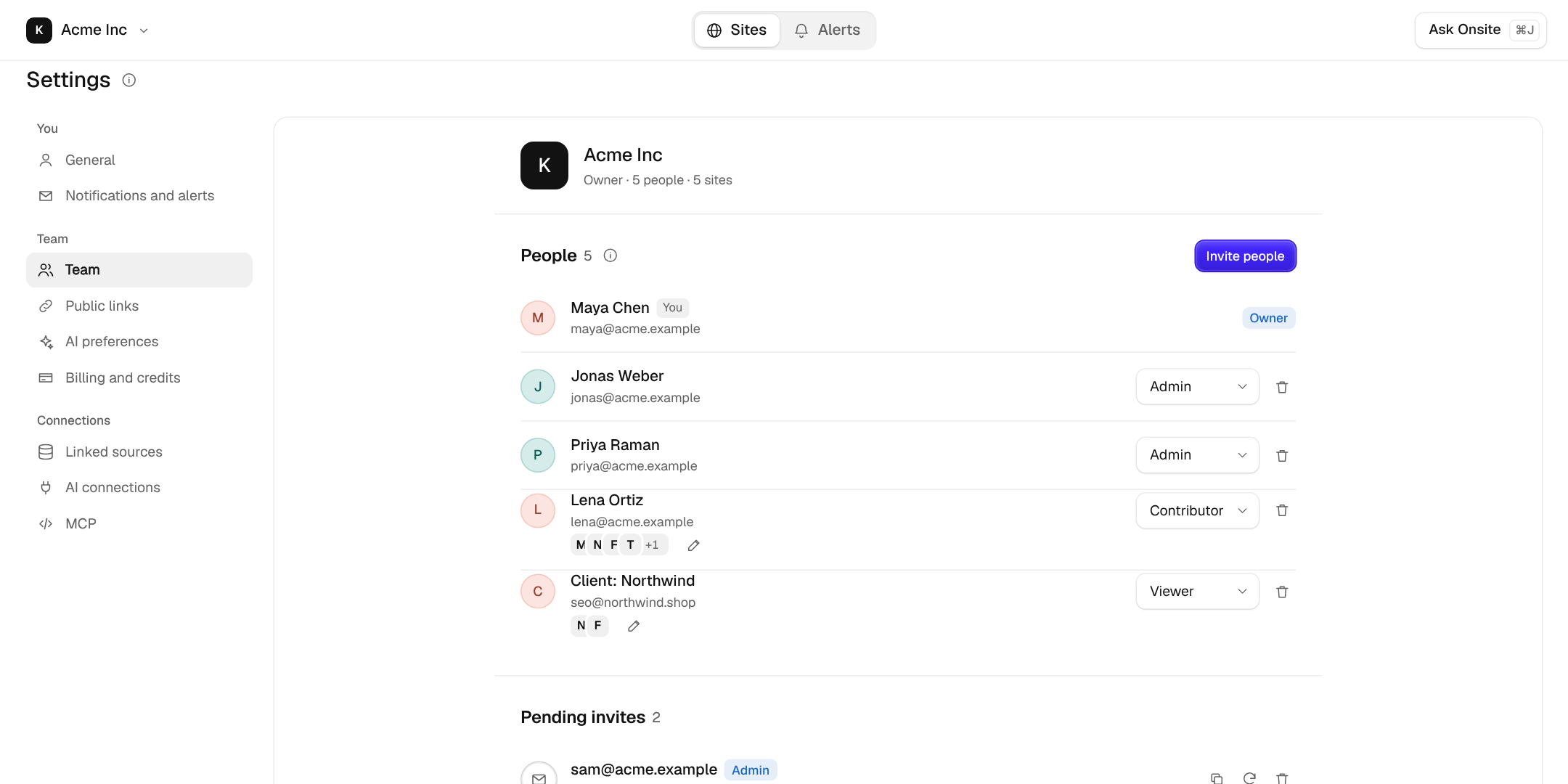
Everyone in Onsite works in a team. A team shares its sites, groups, saved views and credits. Each person's role, and for some roles the sites and permissions you give them, decides what they see and do.
[Open Team settings](https://onsite.so/settings/members)
 ## Roles
| Role | What they can do |
|---|---|
| **Owner** | Everything, including deleting the team. |
| **Admin** | Every site, plus people, permissions and billing. |
| **Contributor** | The sites you pick. Changes only what you allow. |
| **Viewer** | The sites you pick. Reads only, unless you allow more. |
Owners and admins run the team and see every site, including sites added later. Contributors and viewers suit clients, freelancers and colleagues who only need some sites.
## Invite someone
Owners and admins can invite people. Only owners can invite another owner.
Open **Settings › Team**, choose **Invite people**, and enter their email and role.
For a contributor or viewer, pick the sites they can see, or **All sites** to include sites added later.
Choose what they can change on those sites, then choose **Send invite**.
They get an email with a link that only works for that address. **Pending invites** lists invites that haven't been accepted yet, with when they expire. From there you can **Copy link** to send it yourself, **Resend** it, or **Cancel invite**.
## Permissions
For contributors and viewers, you switch each of these on or off:
| Permission | What it allows |
|---|---|
| **Site settings** | Setup, branded terms, competitors, saved reports and indexing checks. |
| **Buckets and keywords** | Buckets, page types and tracked keywords. |
| **Chart notes** | Adding and removing notes and SEO tests on charts. |
| **Alerts** | Changing alerts and where they're sent. |
| **Sharing** | Public links and shared reports. |
| **Ask Onsite and AI** | Chat, setup and AI work. These use credits. |
A viewer with no permissions reads only. Ask Onsite makes only the changes the person's role and permissions allow.
## Change someone's access
In **Settings › Team**, choose **Edit access** next to a person to change their sites and permissions, then **Save access**. Choose **Remove** to take them off the team; they lose access to its sites straight away.
## Leave a team or switch teams
Choose **Leave team** in **Settings › Team** to leave. If you belong to more than one team, choose **Change team** in the workspace menu to switch, and accept invites from there too.
When someone leaves or is removed, sites that read Search Console through their Google account are hidden from All sites. The sites keep their history and come back when someone links a Google account that can read them.
## If something looks wrong
Check the address. If they're already on the team or already have an invite, resend it from **Pending invites**.
An invite only works for the email it was sent to, and it expires. Sign in with that address, or ask for a new invite.
Choose **Edit access** next to them and add the site, or pick **All sites**.
Their role or permissions don't allow it. Switch on the permission under **Edit access**.
## Related
A quick start for new teams.
Share a read-only link instead of a sign-in.
Who can manage the plan.