

Ask Onsite
Connect your ChatGPT plan
Sign in with your ChatGPT account so Ask Onsite answers with your ChatGPT plan instead of your Onsite credits.
Connect your ChatGPT plan once, and Ask Onsite answers your whole team’s questions with it. It takes about two minutes: you switch on one setting in ChatGPT, then sign in with a code Onsite gives you.
Before you start
Section titled “Before you start”- You’re an owner or admin of your Onsite team.
- You have a ChatGPT Plus or Pro plan, or a seat in a Business, Enterprise or Edu workspace. See which plans work.
- On a Business, Enterprise or Edu workspace, a workspace admin has to allow device code sign-in first. If you’re not sure, try the steps below: step 2 tells you if it’s blocked.
Connect ChatGPT
Section titled “Connect ChatGPT”Open AI connections
In Onsite, go to Settings › AI connections, or open onsite.so/settings/ai-connections.
Choose Connect beside ChatGPT. Onsite opens three short steps under the row and gives you a one-time code.
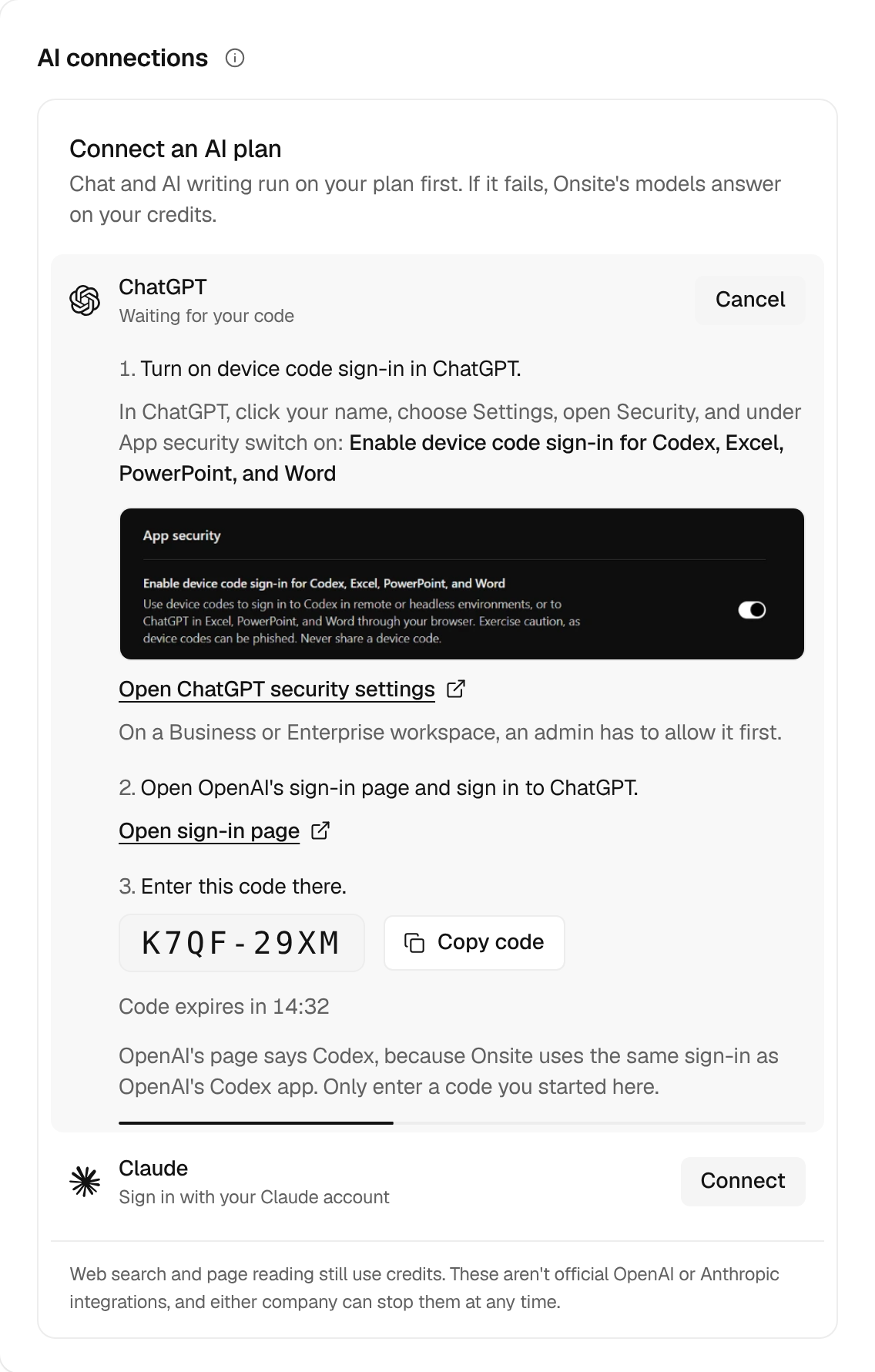
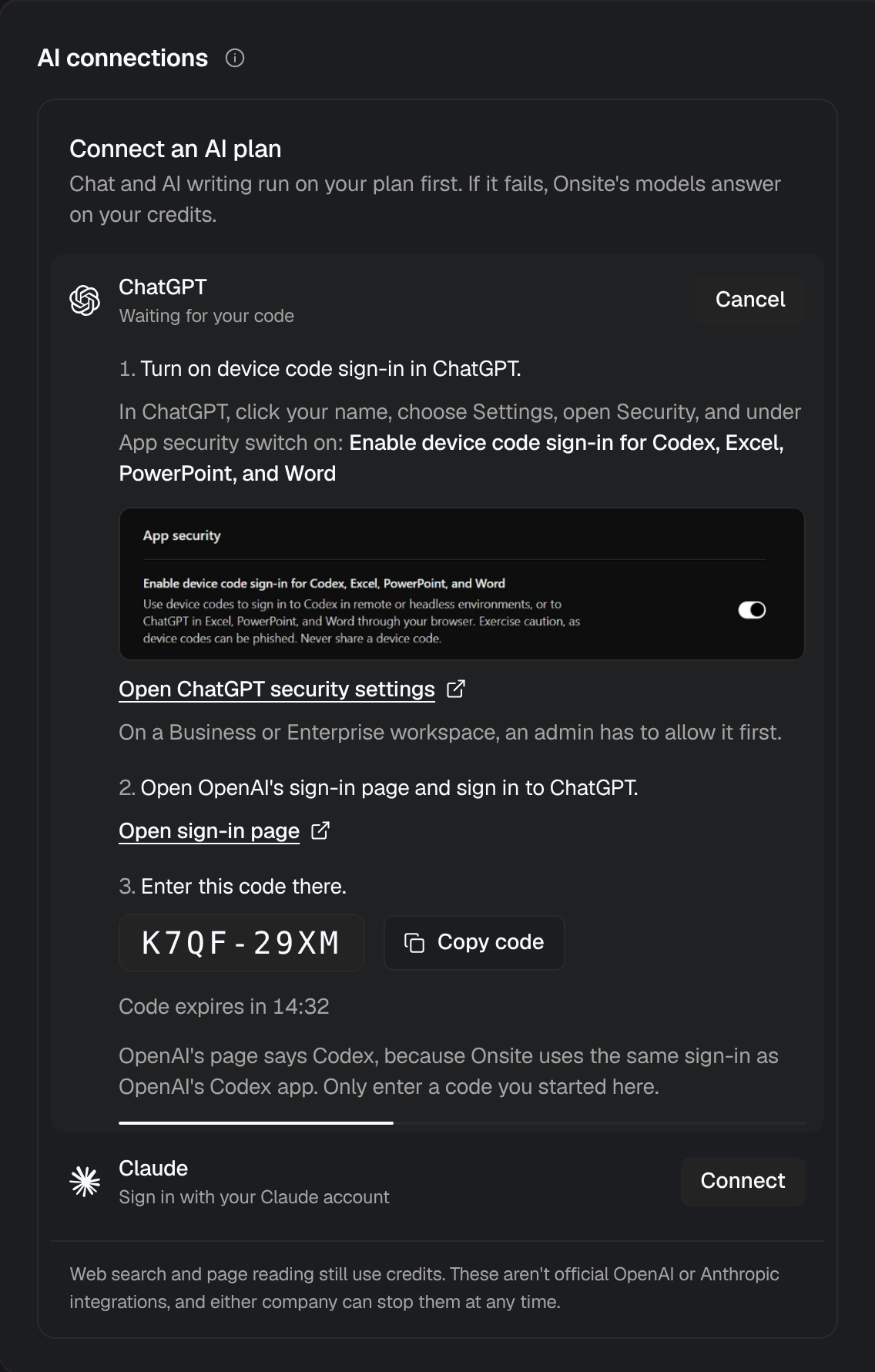
The steps Onsite shows after you choose Connect Turn on device code sign-in in ChatGPT
Choose Open ChatGPT security settings, or in ChatGPT click your name, choose Settings, then open Security.
Under App security, switch on Enable device code sign-in for Codex, Excel, PowerPoint, and Word. You only need to do this once.
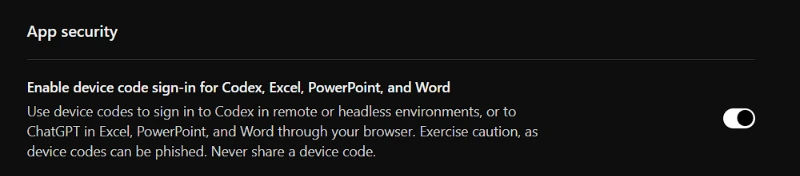
The setting in ChatGPT, under Settings › Security › App security If the switch is missing or greyed out, your workspace admin hasn’t allowed it yet. Ask them to, then come back to this step.
Sign in on OpenAI's page
Back in Onsite, choose Open sign-in page. Sign in with the ChatGPT account whose plan you want to use.
If your login belongs to more than one workspace, OpenAI asks which one to use. Pick the one with the plan.
Enter the code
Choose Copy code in Onsite, paste the code on OpenAI’s page, and approve.
OpenAI’s page may name one of its own apps. That’s expected. Only enter a code you started in Onsite yourself.
The code works for 15 minutes. If it runs out, choose Connect again for a new one.
Come back to Onsite
You don’t need to do anything else. Within a few seconds the ChatGPT row shows Connected, with the account’s email and plan.
Check it worked
Section titled “Check it worked”The ChatGPT row in Settings › AI connections shows Connected, the email you signed in with, and your plan.
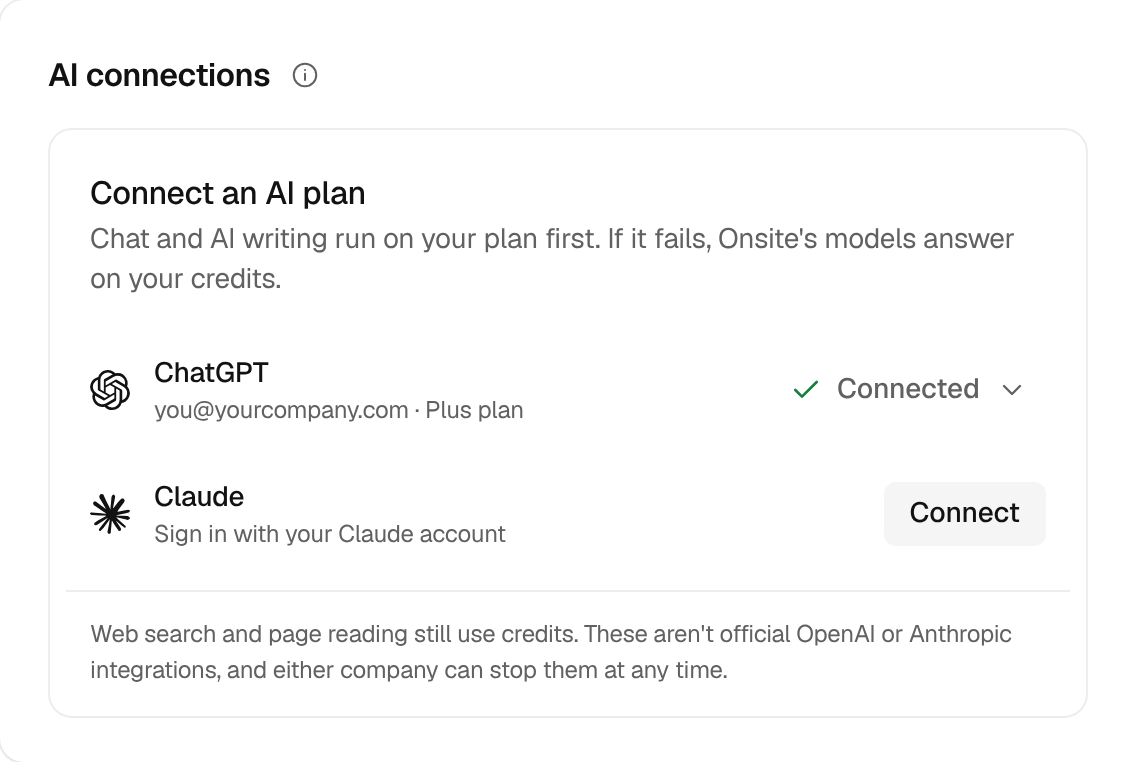
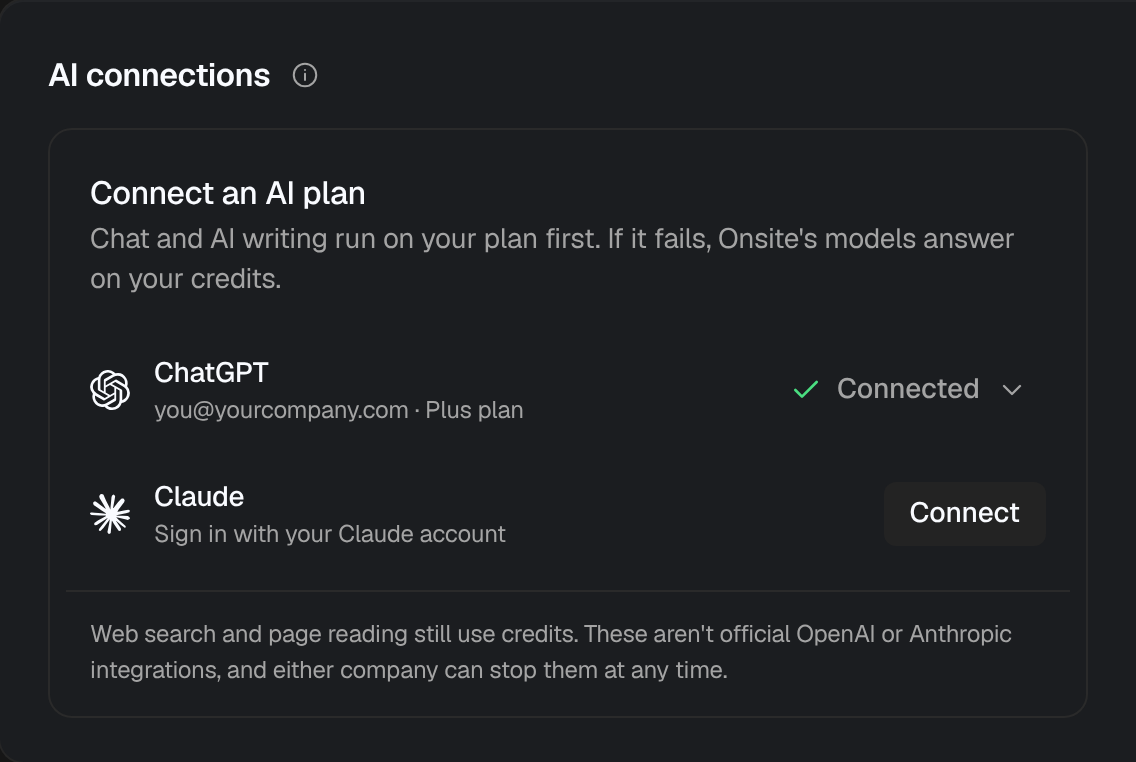
Now open Ask Onsite (top right, or ⌘J) and ask a question about one of your sites. A model name appears beside the send button. That’s how you know your ChatGPT plan is answering.
Choose the model
Section titled “Choose the model”Owners and admins can pick which ChatGPT model answers for the team. In Ask Onsite, choose the model name beside the send button and pick one:
| Model | Best for |
|---|---|
| GPT-6.2 Sol | Everyday questions. A good default. |
| GPT-6.2 Astra | The hardest work, like long reports and tricky comparisons. |
| GPT-6.1 Terra | Fast answers. |
| GPT-6 Luna | The lightest model, for quick questions. |
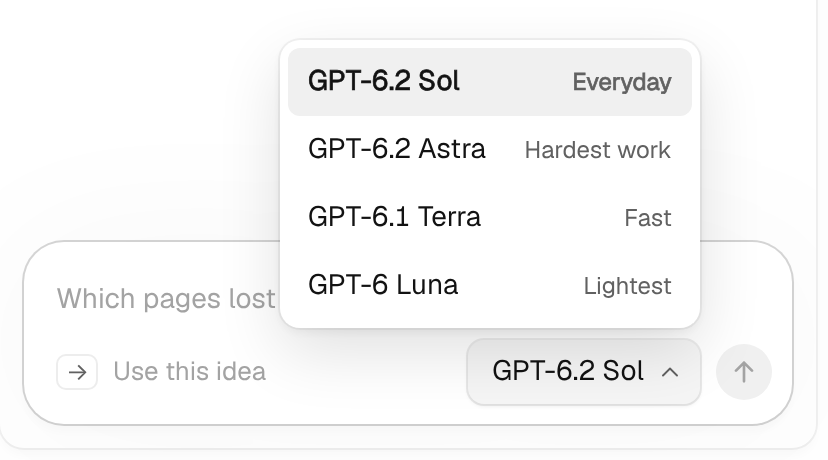
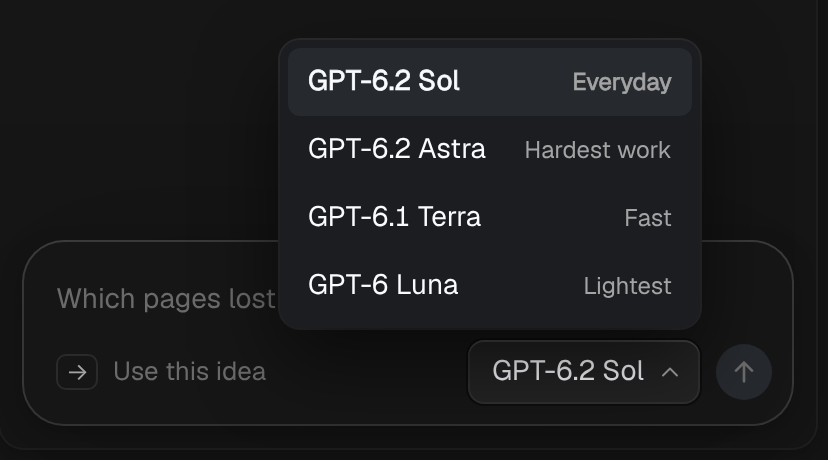
The choice applies to everyone on your team. Larger models can reach your plan’s usage limit sooner.
Switch to another ChatGPT account
Section titled “Switch to another ChatGPT account”- In Settings › AI connections, choose Connected on the ChatGPT row, then Disconnect.
- Choose Connect and follow the steps again. On OpenAI’s page, make sure you’re signed in to the account you want. If it signs you in to the old one, sign out of ChatGPT in that browser first.
Disconnect ChatGPT
Section titled “Disconnect ChatGPT”In Settings › AI connections, choose Connected on the ChatGPT row to see what Onsite can do with your plan, then choose Disconnect.
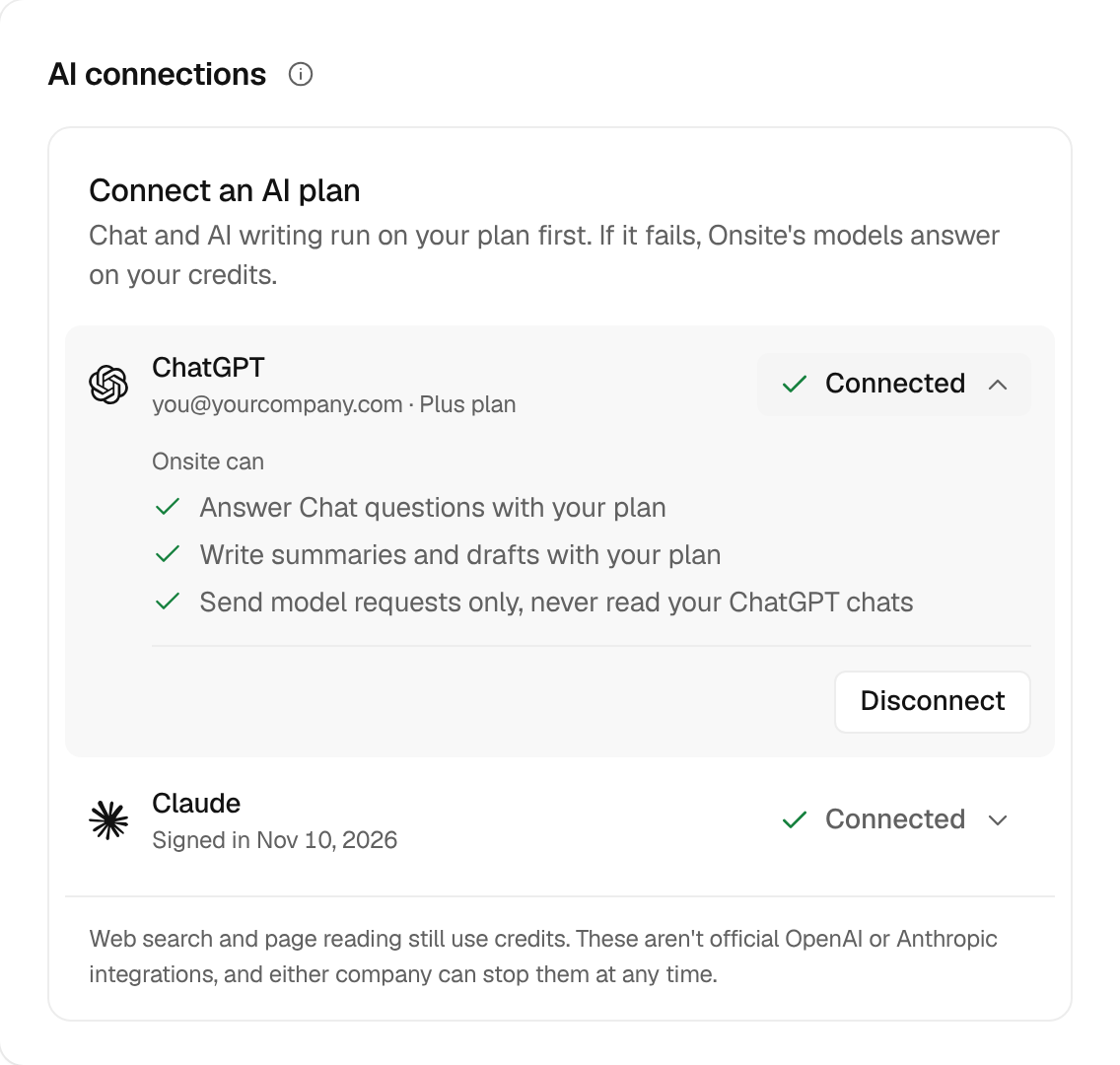
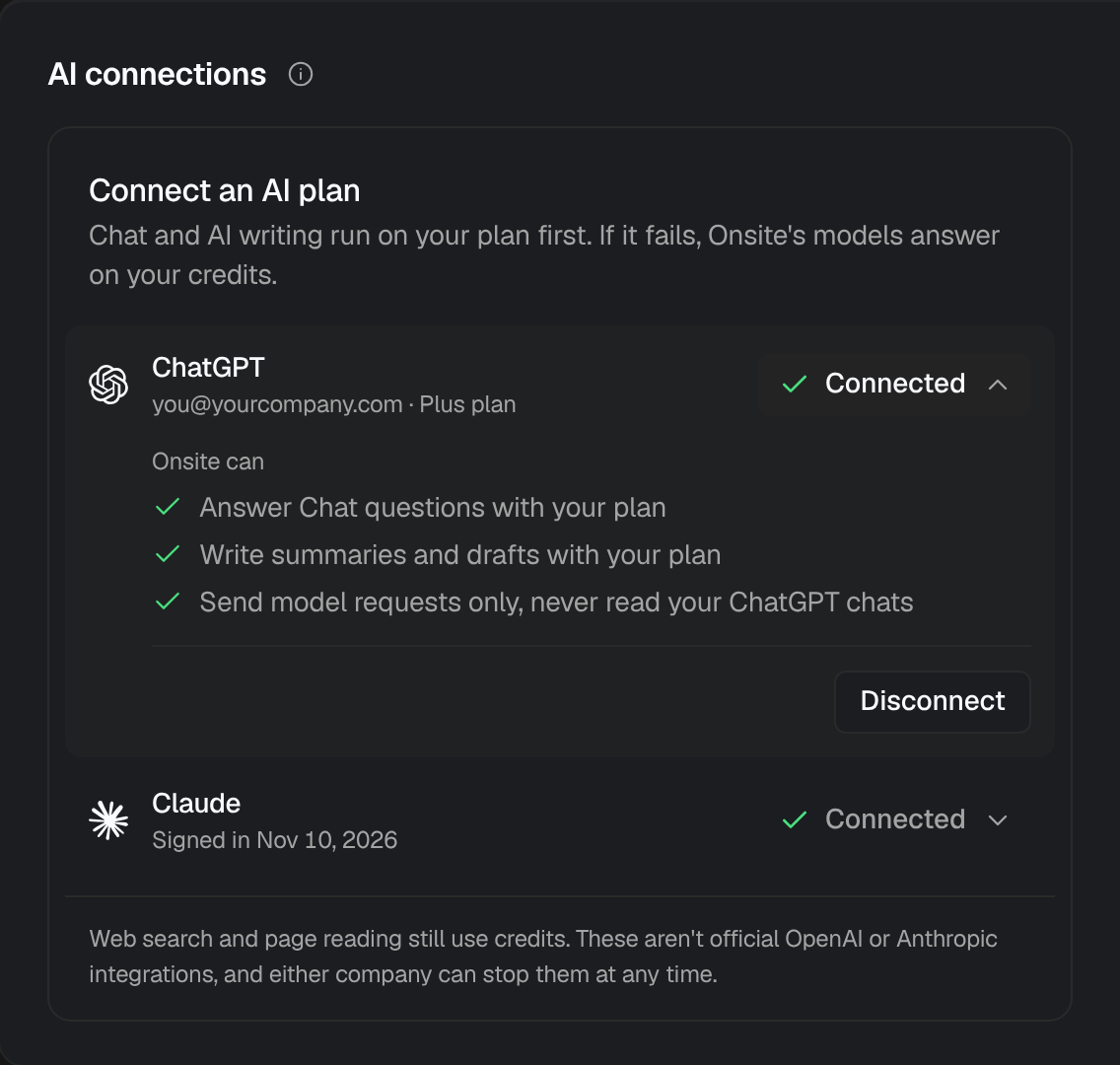
Ask Onsite goes straight back to Onsite’s own models and your credits. Nothing else changes: your chats, notes and settings stay as they are.
If something goes wrong
Section titled “If something goes wrong”The code ran out
Codes work for 15 minutes. Choose Connect again to get a new one, and enter it on OpenAI’s page straight away.
I can't find the device code switch in ChatGPT
On a Business, Enterprise or Edu workspace, a workspace admin has to allow device code sign-in before you can turn it on. Ask them, or connect a personal Plus or Pro account instead.
It connected the wrong workspace or plan
The ChatGPT row shows the plan it connected. If it’s the wrong one, disconnect, connect again, and pick the workspace with the plan when OpenAI asks.
Onsite says ChatGPT signed this connection out
Your ChatGPT sign-in has ended, for example because you changed your password or signed out everywhere. Choose Connect on the ChatGPT row and sign in again. Until you do, Ask Onsite answers on credits.
More fixes, including plan limits, are in Fix a ChatGPT or Claude connection.