

Your site's data
Alerts
Get told when clicks drop, pages fall out of Google or keywords move, in Onsite, in Slack and in a weekly email.
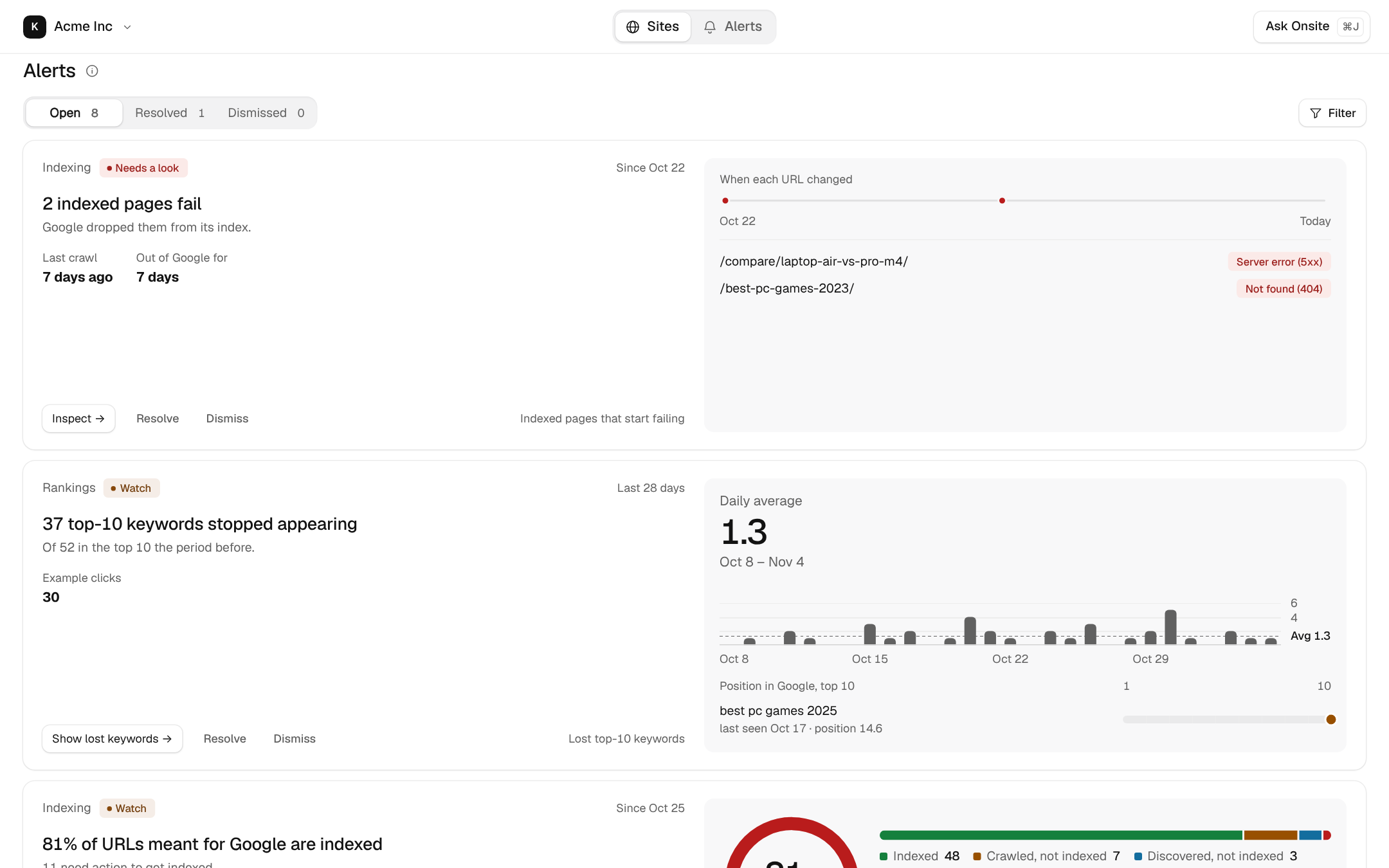
Alerts watch your sites for you. When clicks fall, a page drops out of Google or keywords leave the top 10, an alert explains what happened, shows the pages or keywords behind it, and links to where you can look closer.
Where alerts show
Section titled “Where alerts show”- The Alerts page in the sidebar lists open alerts for every site you can see, grouped by site. Use Jump to a site to move between them.
- The Alerts tab on a site shows only that site’s alerts, and where they’re sent.
- Slack gets each new alert in the channel you pick.
- Email gets the site’s weekly digest.
Alerts use final days only, so the newest days that Google is still counting don’t set them off.
Read an alert
Section titled “Read an alert”Each alert has a severity:
| Severity | What it means |
|---|---|
| Needs a look | Something dropped or broke, like an indexed page that started failing. |
| Watch | Something is drifting the wrong way and worth keeping an eye on. |
| Good news | Something grew, like pages gaining clicks fast. |
The alert shows what changed and since when, the numbers behind it, and the pages, URLs or keywords involved. Its button takes you to the right place, like Open Indexing or Show lost keywords.
When you’ve handled an alert, choose Resolve. Dismiss hides it until the problem clears. Use Filter to see Open, Resolved or Dismissed alerts, or one severity or source.
The alerts Onsite watches for
Section titled “The alerts Onsite watches for”| Alert | When it fires |
|---|---|
| Clicks | Clicks fall by your chosen percentage, the last 7 days against the 7 before. |
| Impressions | Impressions fall by your chosen percentage, week on week. |
| Indexed pages that start failing | A page that was in Google’s index drops out. |
| Pages leaving Google | Your chosen number of pages leave Google’s index within 8 days. |
| Index coverage | The share of URLs meant for Google that are indexed falls under your threshold. |
| New pages not indexed | A new page still isn’t indexed after your chosen number of days. |
| Lost top-10 keywords | Your chosen number of keywords leave the top 10. |
| Keywords reaching the top 10 | Your chosen number of new keywords reach the top 10. |
| Content decay | Your chosen number of pages are losing clicks against their best month. Seasonal pages are left out. |
| Pages gaining clicks | A page’s clicks rise by your chosen percentage over 28 days. |
Choose Alert settings on a site to turn each one on or off and set its number. Changes save as you make them.
Make your own alert
Section titled “Make your own alert”Choose New alert to write your own rule as a sentence: Alert me when clicks, impressions, CTR or average position drop, rise or change by an amount, for the whole site, pages containing some text, or keywords containing some text, against the previous 7 or 28 days. Then pick whether to tell you by email, on Slack, or in Onsite only.
For example: alert me when clicks drop by 20% for pages containing /blog, against the previous 7 days, and tell me on Slack.
You can have up to 20 custom alerts per site.
Send alerts to Slack
Section titled “Send alerts to Slack”Add Onsite to Slack
On a site’s Alerts tab, choose Change next to where alerts go, then Add to Slack. Approve it in Slack.
Pick a channel
Every public channel is listed. For a private channel, open it in Slack, type
/invite @Onsiteand send it, then come back and choose Refresh.Send a test
Choose Send test to check it works. Recent sends shows each message and whether it arrived.
Each site posts to one channel. Different sites can use different channels, and you can add another Slack workspace.
Get the weekly digest
Section titled “Get the weekly digest”The weekly digest sums up a site’s week: how search did, the alerts it raised and what changed in indexing. Turn on Email and add up to 10 addresses, or send it to Slack. Pick the day and hour it sends, in UTC.
To change how alert messages are worded, open Settings › Notifications and alerts › Message templates.
If something looks wrong
Section titled “If something looks wrong”It says View only
Your role doesn’t let you change alerts. Ask a teammate who can, or an admin to give you that permission.
My private Slack channel isn't listed
Onsite can only see private channels it’s been invited to. Type /invite @Onsite in the channel, then choose Refresh.
Onsite was removed from the Slack workspace
Someone removed the app in Slack. Choose Add to Slack again, then pick the channel.
Too many alerts, or too few
Open Alert settings and raise or lower each alert’s number, or turn off the ones you don’t need.