

Settings
Page types
Group your pages by kind, like product pages, guides or blog posts, and see which kinds bring the most visitors.
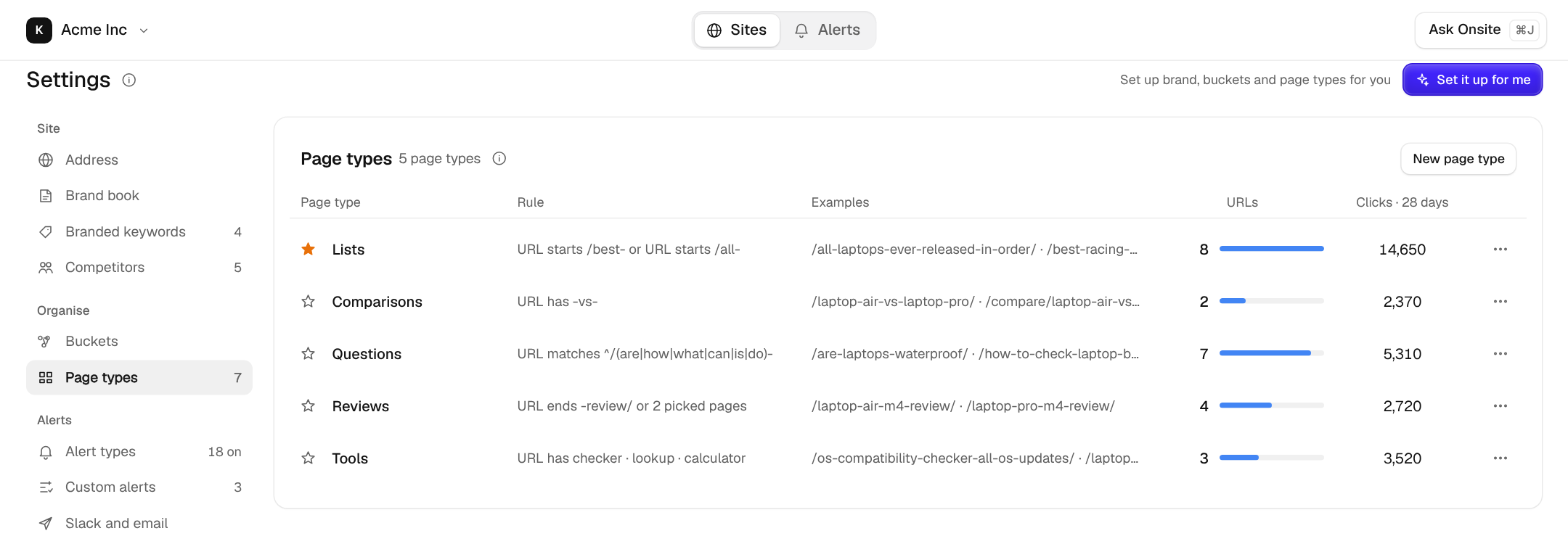
Page types show how each kind of page is doing in search. Put pages together by type, like every product page, guide or blog post, and see which kinds bring the most visitors and which are slipping.
See your page types
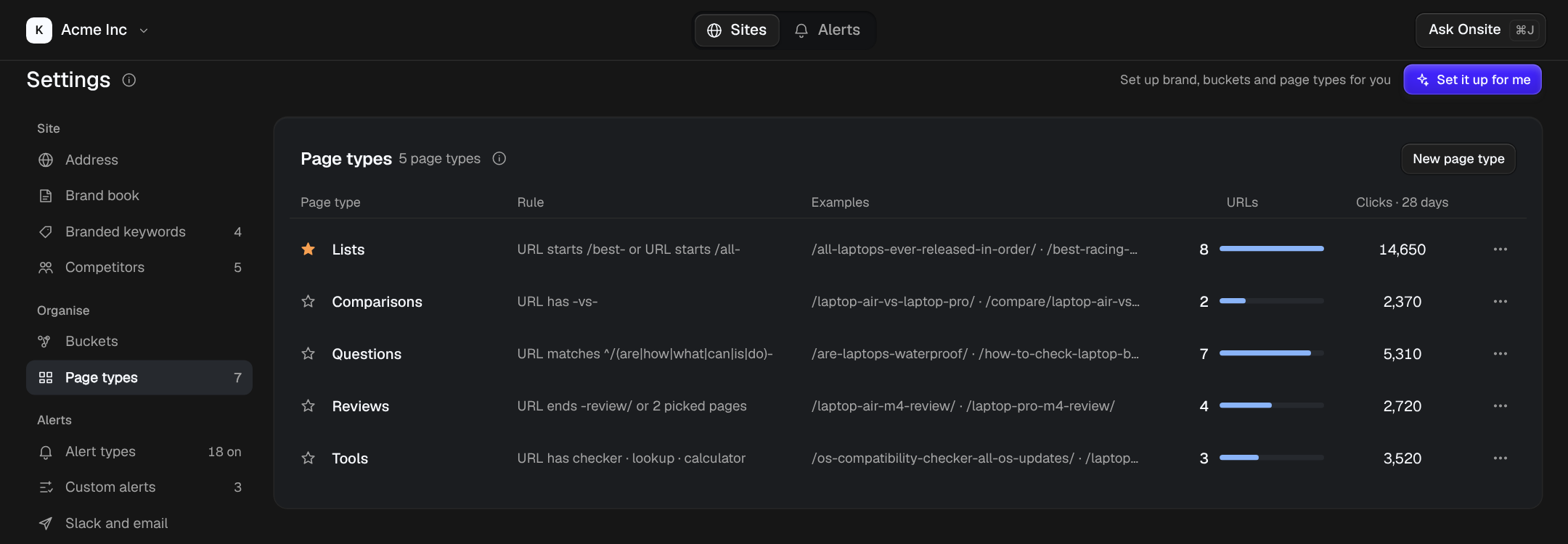
Section titled “See your page types”Open the site, then Settings › Page types. Each page type shows its rule, how many pages it holds and the clicks they brought in the last 28 days.
Let the Onsite agent make them
Section titled “Let the Onsite agent make them”Choose Sort with Onsite agent. The agent reads every page in your sitemap and makes page types like Blog posts, Comparisons or Product pages. It takes about a minute and uses credits.
- It asks before replacing the page types the site has.
- Each page type it makes is a set of rules you can open and edit like one you made yourself.
- New pages join their page type on their own, so you don’t need to sort again.
- If a sort can’t finish, nothing changes.
Make a page type
Section titled “Make a page type”Choose New page type
Choose New page type and give it a Name, like Guides.
Add match rules
Under Match rules, add a part of the address these pages share, like
/guides/or/blog/. You can also paste full addresses.Check what it matches
What it matches shows the pages it picks up and the clicks they bring.
Create it
Choose Create page type.
New pages with the same kind of address join the page type on their own.
More precise rules
Section titled “More precise rules”- Use the menu on a rule for Is exactly, Starts with, Ends with, Matches regex and more.
- Choose Add condition to combine rules, then Any condition or Every condition.
- To leave pages out, pick Doesn’t contain any of.
Add single pages
Section titled “Add single pages”A page type can also hold pages you pick one by one, on top of its rules. When you edit it, use Pick pages or Paste URLs under Pages. They’re listed under Exact URLs, where you can remove them.
When a page fits more than one page type
Section titled “When a page fits more than one page type”Each page belongs to one page type, so nothing is counted twice. If some pages are already in another page type when you make a new one, you choose where they go: Keep in the other page type, or Use new page type to move them.
Edit, star or delete a page type
Section titled “Edit, star or delete a page type”- Select a page type’s name to edit it.
- The … menu on its row has Edit, Show in the dashboard and Delete.
- The star marks a page type as a priority, so your starred page types show together in the dashboard.
Deleting a page type only removes the page type. Your data stays as it is.
Where you’ll see them
Section titled “Where you’ll see them”- On the Overview, the Page types card shows each page type’s clicks and trend.
- In Filter, choose Page types to see the whole dashboard for those pages.
- In Indexing, filter the URL list by page type to see whether a whole kind of page is indexed.
- In Insights, reports like Trending pages can look at one page type, and Google update impact can break an update down by page type.
Page types sort pages. To sort searches by subject, use Buckets.