

Team and billing
Billing and credits
How the Onsite plan, renewals, invoices and monthly AI credits work, and who on your team can change them.
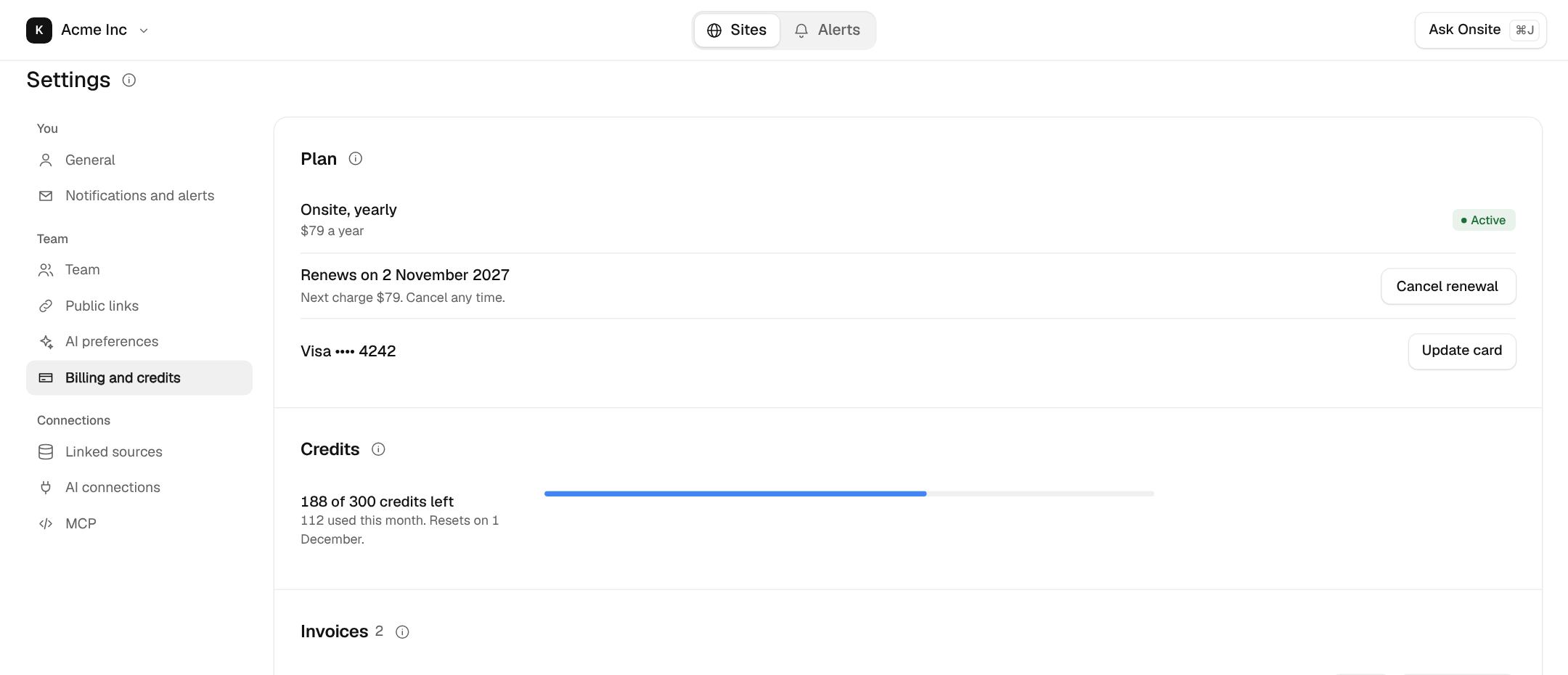
Onsite has one plan, paid yearly, with everything included. Each month your team also gets AI credits for Ask Onsite and other AI work. Settings › Billing and credits shows both.
Your plan
Section titled “Your plan”The plan covers every Search Console site your team adds, alerts, reports and AI setup, plus 250 AI credits a month. The pricing on onsite.so shows today’s price. Your team keeps the price it bought at when it renews.
If you have a code, enter it on the payment page at checkout.
Settings › Billing and credits shows your plan’s state, when it renews and the next charge:
| State | What it means |
|---|---|
| Active | The plan is paid and renews on the date shown. |
| Ends soon | Renewal is off. Onsite keeps working until the end date. |
| Payment due | The last renewal failed and the payment is being tried again. Onsite keeps working meanwhile. |
| Paused | A payment is being checked. |
| Ended | The plan has ended. Your sites and settings are kept. Choose a plan to pick up where you left off. |
Who can manage billing
Section titled “Who can manage billing”Owners and admins can buy the plan, turn renewal off or on, and update the card. Everyone else on the team can see the plan and download invoices. To change someone’s role, see Team and roles.
Manage your plan
Section titled “Manage your plan”Update your card
Choose Update card next to your card. A secure payment page from Whop, our payment provider, opens in a new tab; change the card there. Your next renewal uses it, and a failed renewal is tried again on the new card. Onsite never sees or stores your card number.
Turn renewal off, or back on
Choose Cancel renewal next to the renewal date, then confirm. You keep Onsite until the end of the year you paid for. To turn it back on before then, choose Keep my plan.
Download an invoice
Under Invoices, find the payment by its date and choose View or Download. If a new payment shows no invoice yet, check again in a few minutes.
My renewal didn't go through
Owners and admins get an email with the bank’s reason and the date of the next try. Choose Update card to avoid a gap. If your bank asks you to approve the payment, open the email Confirm your Onsite renewal, choose Confirm the payment and approve it in your bank’s app.
Refunds
Onsite doesn’t refund payments, except where the law requires it. If you think you were charged by mistake or twice, choose Support in the app and ask for a person.
Credits
Section titled “Credits”Your plan includes a monthly allowance of credits, shared by everyone on the team. They reset on the 1st, and unused credits don’t carry over. Credits in Settings › Billing and credits shows how many are left and when they reset.
Credits are used for AI work and a few heavier actions:
- Questions to Ask Onsite, including searching Google and reading pages.
- Set it up for me, the AI setup of a site.
- Writing a brand book.
- Sorting keywords and pages into buckets and page types with the Onsite agent.
- Check now in Indexing.
- Full exports of Every row.
Each action says when it uses credits. Bigger jobs use more than a quick question.
When credits run out
Section titled “When credits run out”AI actions pause until the 1st. Everything else keeps working: the dashboard, reports, alerts, the daily indexing checks and data updates.