

Sites and sharing
Sites and groups
Add your Search Console sites, see them all on one page, and sort them into groups, pins and priorities.
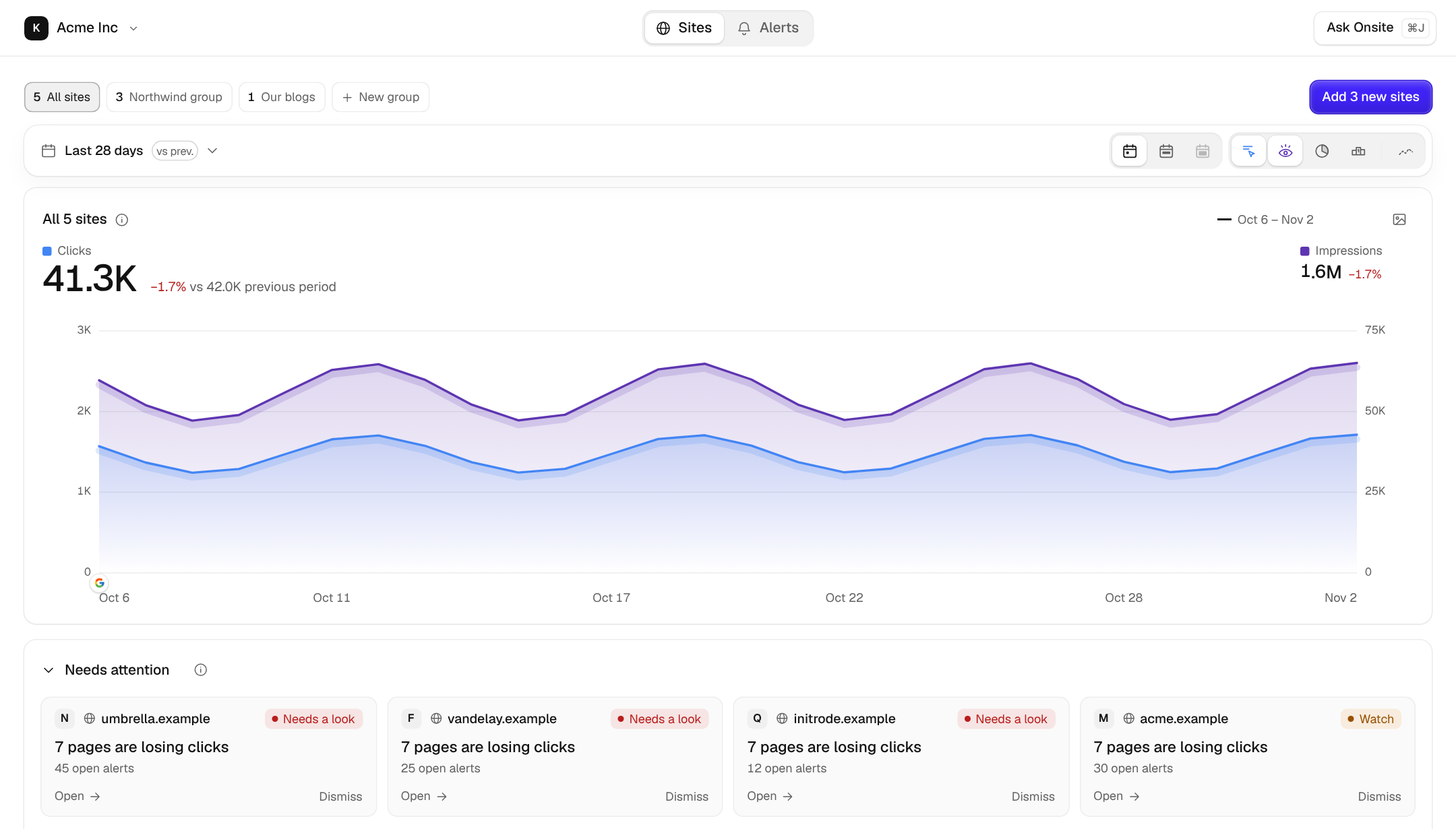
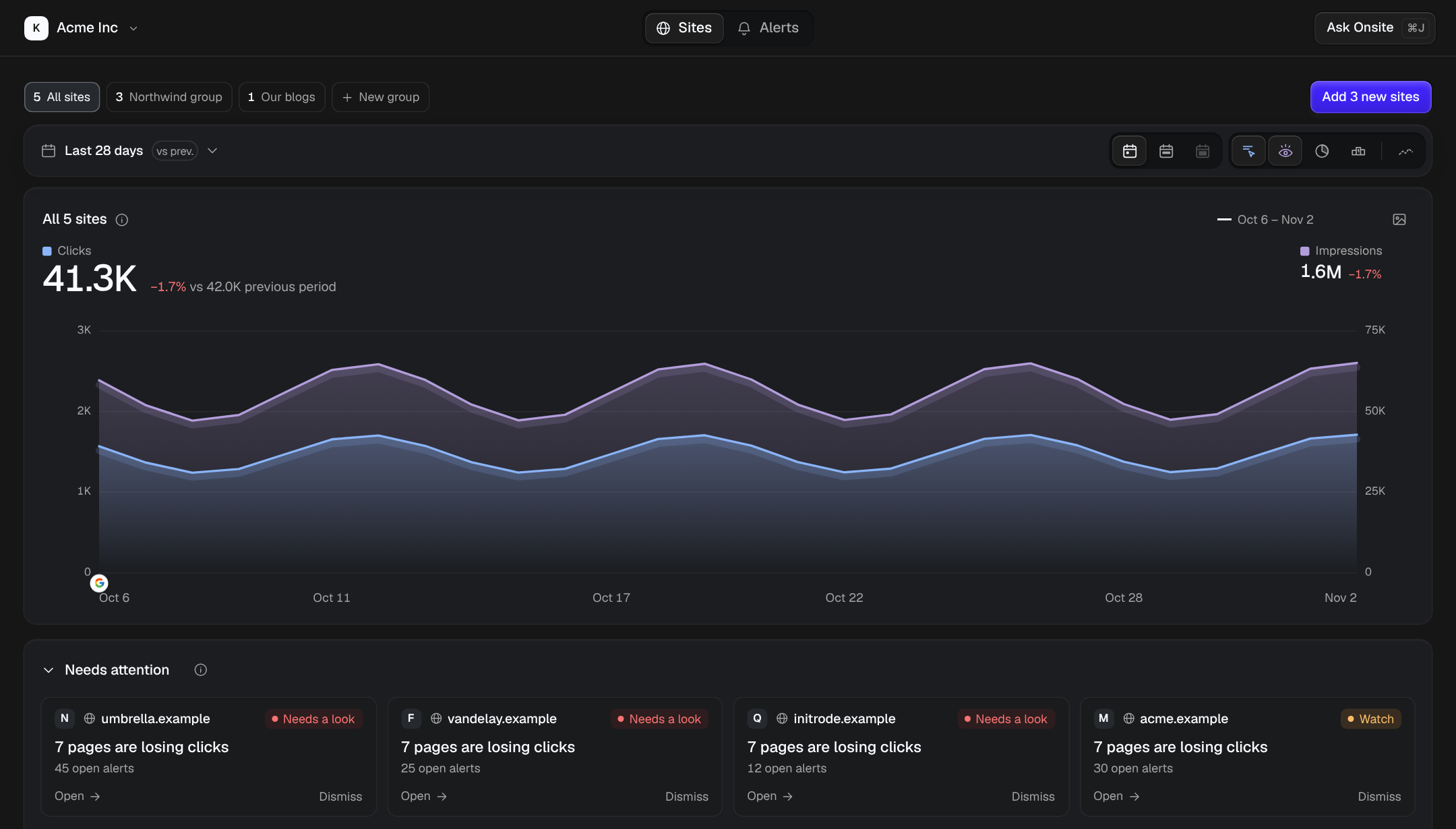
All sites is the first page you see in Onsite. It shows every site your team has, added together on one chart, with a card or a row for each site so you can spot the ones that need you.
Add a site
Section titled “Add a site”Onsite reads your sites from Search Console, so a site needs a Search Console property first.
Choose Add site
On All sites, choose Add site.
Pick the property
Pick a Google account, then the Search Console property. A Domain property covers every subdomain and protocol, like
example.comandshop.example.com. A URL-prefix property covers one address, likehttps://www.example.com/.Choose its address and group
The address is how the site appears in Onsite links, like
/sites/example. Pick a group: Clients, Owned or Watching. You can change both later.Pin it, if you like
Tick Pin to the top of All sites to keep it in view. Then choose Add site.
If a property you expect isn’t listed, the Google account can’t see it. Choose Link another Google account and pick one that has access in Search Console. See Connect Search Console.
Read All sites
Section titled “Read All sites”- The chart adds up every site in view, for the period you pick.
- Needs attention lists the sites with open alerts.
- Cards or Table under View switch between a card for each site and one row each.
Filter by trend, Growing, Steady or Declining, to find the sites that moved. Trends need a comparison, so pick one in the date button first. Priority shows only the sites you’ve starred.
Sort puts sites in your Custom order, Biggest drops first, Biggest gains first, Most clicks first or Name A to Z. To set your custom order, drag a card by its top edge.
Groups
Section titled “Groups”Groups split All sites by client, brand or anything else you like. They’re shared with your whole team.
- Choose New group next to All sites.
- Name it, like a client’s name, and pick its sites.
- Choose Save.
Pick a group to see only its sites on the chart and in the list. Choose Edit to change its sites, or delete it; its sites stay. A team can have up to 50 groups.
Pin, star and hide
Section titled “Pin, star and hide”These change only your own view. Teammates keep their own.
| Action | What it does |
|---|---|
| Pin | Keeps a site at the top of All sites, under Pinned sites. Pinned sites are set up first. |
| Star | Marks a site as a priority, so Priority finds it. |
| Hide | Takes a site off your All sites. Its data, alerts and team access stay. Find it again under Hidden sites, or choose Hide site in the site’s Settings. |
Move between sites
Section titled “Move between sites”Choose the site’s name at the top of any page to switch to another site. The switcher shows which sites have GA4 and Bing connected. All sites in the sidebar takes you back.
Recently removed sites
Section titled “Recently removed sites”A site removed from the team waits under Recently removed for 14 days. Choose Restore to bring it back as it was, with its history. After 14 days it’s deleted for good.
If something looks wrong
Section titled “If something looks wrong”A site says Needs reconnecting
The Google account that linked it can’t see the property any more. Choose Reconnect and pick a Google account that can see it in Search Console. Its history is kept.
A site says No data since a date
Google hasn’t sent new data for it since then. See No new Search Console data.
I can't see a site my teammates can
You may have hidden it: look under Hidden sites. If it’s not there, it isn’t shared with you. Ask an admin to give you access in Settings › Team.
Showing my screen on a call
Turn on Privacy blur in the workspace menu. It blurs site names, keywords and pages and keeps the numbers.