

Settings
Buckets
Group your searches by subject, so you see how a whole topic is doing in Google and track its keywords together.
Buckets show how a whole subject is doing in search, not one keyword at a time. Put a subject’s searches together, like every search about pricing in Pricing or every question about setup in Getting started, and see which subjects grow and which need attention.
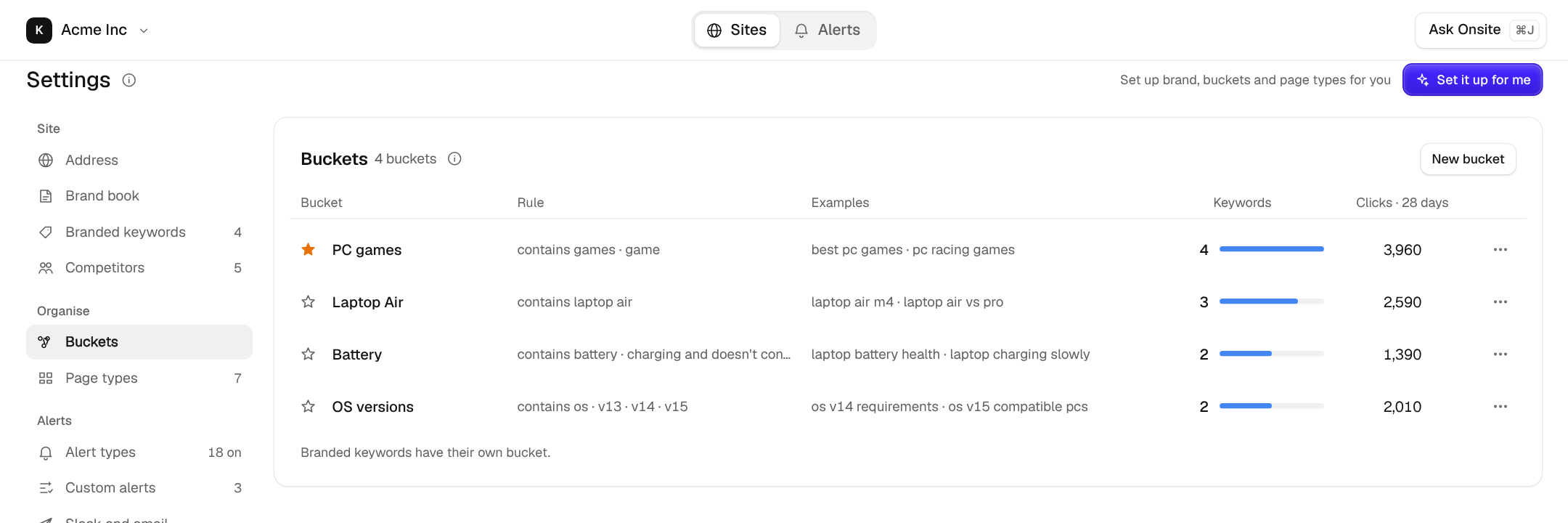
See your buckets
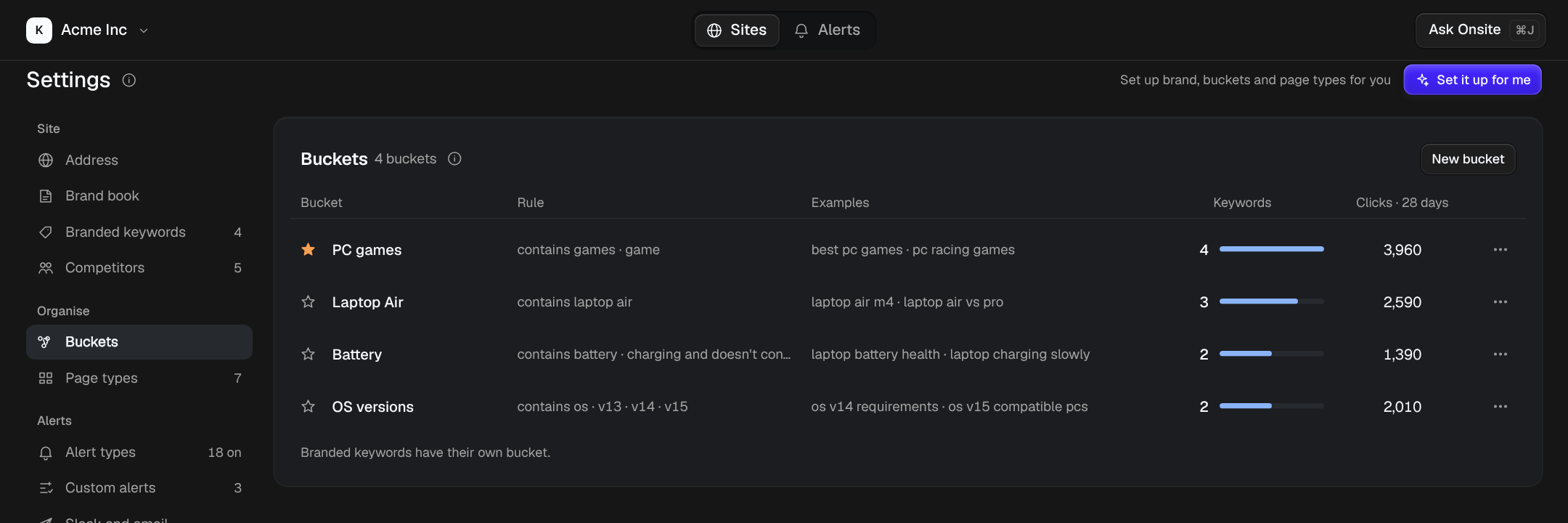
Section titled “See your buckets”Open the site, then Settings › Buckets. Each bucket shows its rule, how many keywords it holds and the clicks they brought in the last 28 days.
Let the Onsite agent make them
Section titled “Let the Onsite agent make them”Choose Sort with Onsite agent. The agent names the buckets and sorts every keyword by the page it lands on. It takes about a minute and uses credits.
If the site already has buckets, it asks before replacing them. If a sort can’t finish, nothing changes. Sort again with Onsite agent runs it again later.
Make a bucket
Section titled “Make a bucket”Choose New bucket
Choose New bucket and give it a Name, like Pricing.
Add match rules
Under Match rules, add the words that belong to the subject, like
price, pricing, cost. Paste several at once, or type one and press Enter.Check what it matches
What it matches shows the searches it picks up and the clicks they bring, so you can spot anything missing or out of place.
Create it
Choose Create bucket.
More precise rules
Section titled “More precise rules”- Choose Add condition to combine rules, then Any condition or Every condition.
- Use the menu on a rule for Is exactly, Starts with, Ends with, Matches regex and more.
- To leave searches out, pick Doesn’t contain any of. For example, a Pricing bucket can include
priceandcostbut leave outjobs.
When a search fits more than one bucket
Section titled “When a search fits more than one bucket”Each search belongs to one bucket, so nothing is counted twice. A keyword joins the first bucket it matches, in the order of your list.
If some searches are already in another bucket when you make a new one, you choose where they go: Keep in the other bucket, or Use new bucket to move them. Future matches follow the same choice.
Edit, star or delete a bucket
Section titled “Edit, star or delete a bucket”- Select a bucket’s name to edit it.
- The … menu on its row has Edit, Show in the dashboard and Delete.
- The star marks a bucket as a priority, so your starred buckets show together in the dashboard.
Deleting a bucket only removes the bucket; your data stays. Keywords you put in it by hand move to Priority in Rank tracking.
Where you’ll see them
Section titled “Where you’ll see them”- On the Overview, the Buckets card shows each subject’s clicks and trend. Choose Rising or Falling to see what’s moving.
- In Filter, choose Buckets to see the whole dashboard for one subject.
- In Rank tracking, each bucket tracks its own keywords. See Rank tracking.
- In Insights, reports like Striking distance can look at one bucket.
Good to know
Section titled “Good to know”- New searches that fit join the bucket on their own, and past data counts too.
- Searches for your own brand stay out of buckets. See Branded keywords.
- A bucket can also hold keywords you put in it by hand from Rank tracking. A bucket with no rules holds only those.
- Buckets sort searches. To sort pages, use Page types.