

Settings
Settings
Where to change your account, your team, each site's setup, alerts and connections, and what every section does.
Onsite has two kinds of settings. Account settings cover you and your team. Site settings cover one site: its brand, how its data is grouped, its alerts and its connections.
Account settings
Section titled “Account settings”Open them from the workspace menu, at the top of the sidebar, then Settings.
| Section | What it holds |
|---|---|
| General | Your name, email and time zone, and whether charts show the days Google is still counting. |
| Notifications and alerts | Which emails you get, like alert emails, product updates and tips. Your team’s Slack workspaces, and the Message templates alerts use. |
| Team | People, roles and invites. See Team and roles. |
| Public links | Every public link and shared chart picture, in one place. Turn one off to stop it at once. |
| AI preferences | The language Onsite answers in, and instructions it follows in every answer. They apply to the whole team. |
| Billing and credits | Your plan, invoices and this month’s credits. See Billing and credits. |
| Linked sources | The Google accounts and Bing accounts your team reads data through. |
| AI connections | A ChatGPT or Claude plan for Ask Onsite to use. See AI accounts. |
| MCP | AI tools, like Claude or Cursor, connected to your Onsite data. See MCP. |
Linked sources
Section titled “Linked sources”Each Google account linked here shows the sites it can see in Search Console, and teammates share their sites through the team. Link another account when a site you need belongs to a different Google login.
If an account says Google access stopped, choose Link again and sign in. The sites keep their history.
Site settings
Section titled “Site settings”Open a site, then its Settings tab.
| Group | Section | What it does |
|---|---|---|
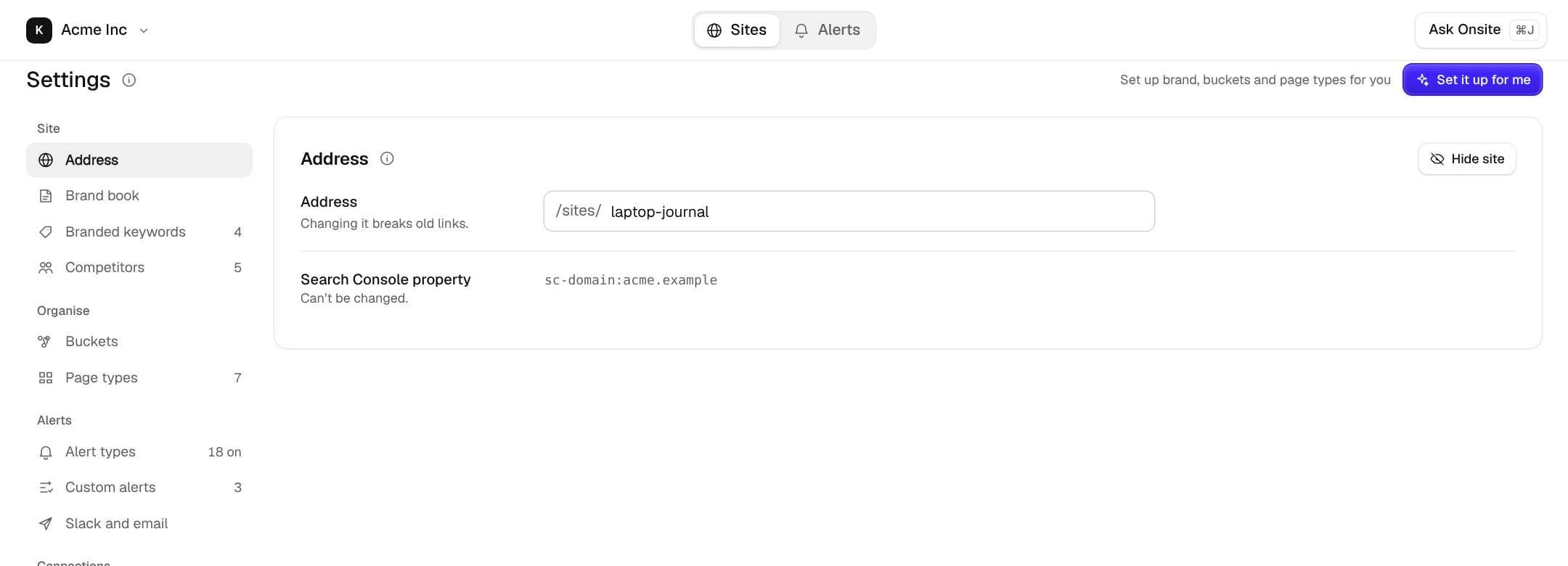
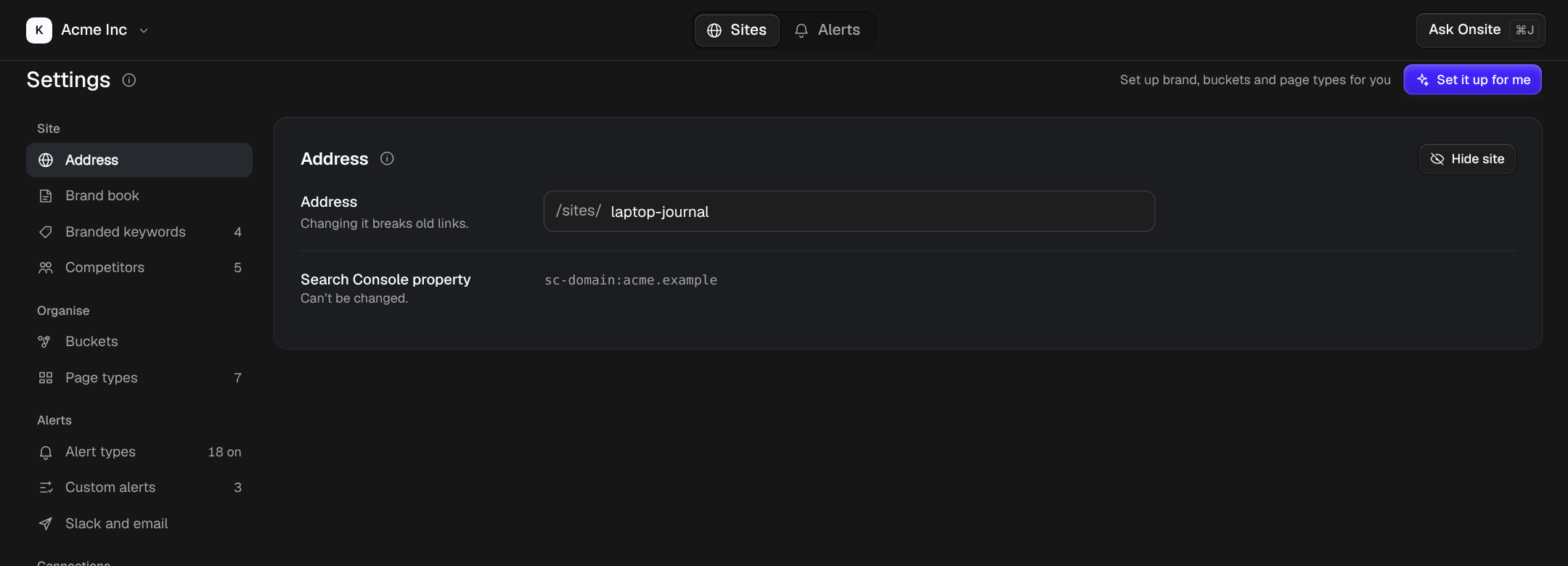
| Site | Address | The site’s address in Onsite links. Changing it breaks old links. The Search Console property can’t be changed. |
| Brand book | Who the site is for, what it publishes and who it competes with. See Brand book. | |
| Branded keywords | Searches for your own brand, kept apart from the rest. See Branded keywords. | |
| Competitors | Sites that write for the same readers, like example.org. |
|
| Organise | Buckets | Keywords grouped by subject. See Buckets. |
| Page types | Pages grouped by kind. See Page types. | |
| Alerts | Alert types | Turn each alert on or off and set when it fires. See Alerts. |
| Custom alerts | Your own alert rules for the site, a page or a keyword. | |
| Slack and email | Where the site’s alerts and weekly digest go. | |
| Connections | Google Analytics 4 | The GA4 property for the site. See GA4. |
| Bing | The Bing site that matches this one. See Bing. | |
| Shared link | The site’s public link. See Sharing and reports. |
The Address section also has Hide site, which takes the site off your own All sites list.
If a section says you can see it but not change it, your role doesn’t include that permission. Ask an owner or admin to switch it on in Settings › Team.
Set it up for me
Section titled “Set it up for me”Set it up for me gets a site ready in about a minute. It reads the site and fills in its brand book, branded keywords, competitors, buckets and page types, so the dashboard is organised from day one.
New sites are set up this way when they’re added. To run it again, open the site’s Settings and choose Set it up for me at the top.
Watch it work, or don't
You can watch each part as it’s set up. Keep going without me lets it finish in the background, Skip to results jumps to the end, and Stop cancels it.
Check what it saved
At the end, each part is marked New, Adds to yours or Replaces yours. Choose Open dashboard to see the result.
It uses credits. You can change anything it saved in the sections above.