

Ask Onsite
Connect your Claude plan
Sign in with your Claude account so Ask Onsite answers with your Claude plan instead of your Onsite credits.
Connect your Claude plan once, and Ask Onsite answers your whole team’s questions with it. You sign in to Claude, approve Onsite, and paste back the code Claude shows you.
Before you start
Section titled “Before you start”- You’re an owner or admin of your Onsite team.
- You have a Claude Pro or Max plan, or a Team or Enterprise seat that includes Claude Code. See which plans work.
- Give yourself 10 minutes from the moment you start. That’s how long the sign-in stays open.
Connect Claude
Section titled “Connect Claude”Open AI connections
In Onsite, go to Settings › AI connections, or open onsite.so/settings/ai-connections.
Choose Connect beside Claude. Onsite opens three short steps under the row.
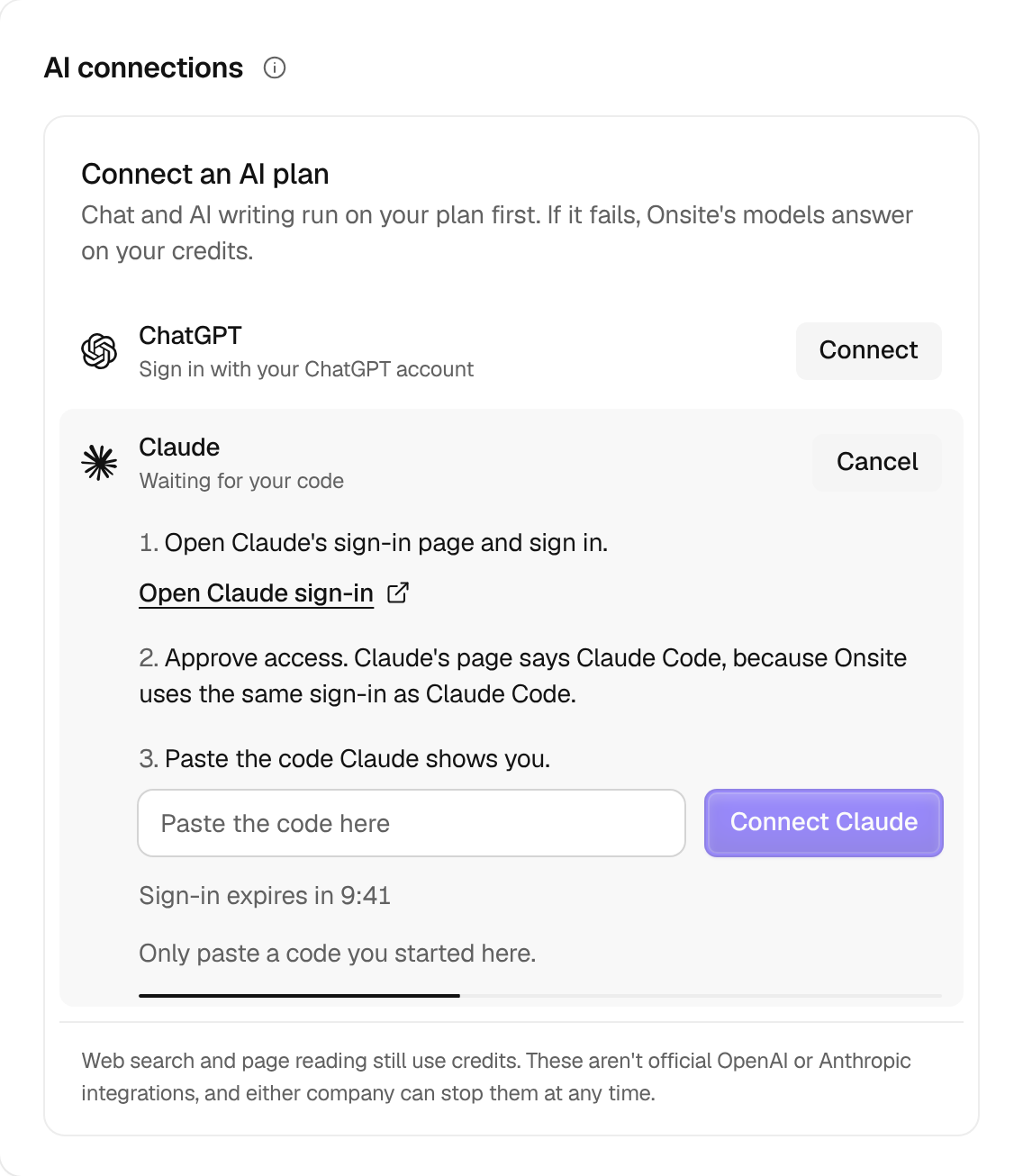
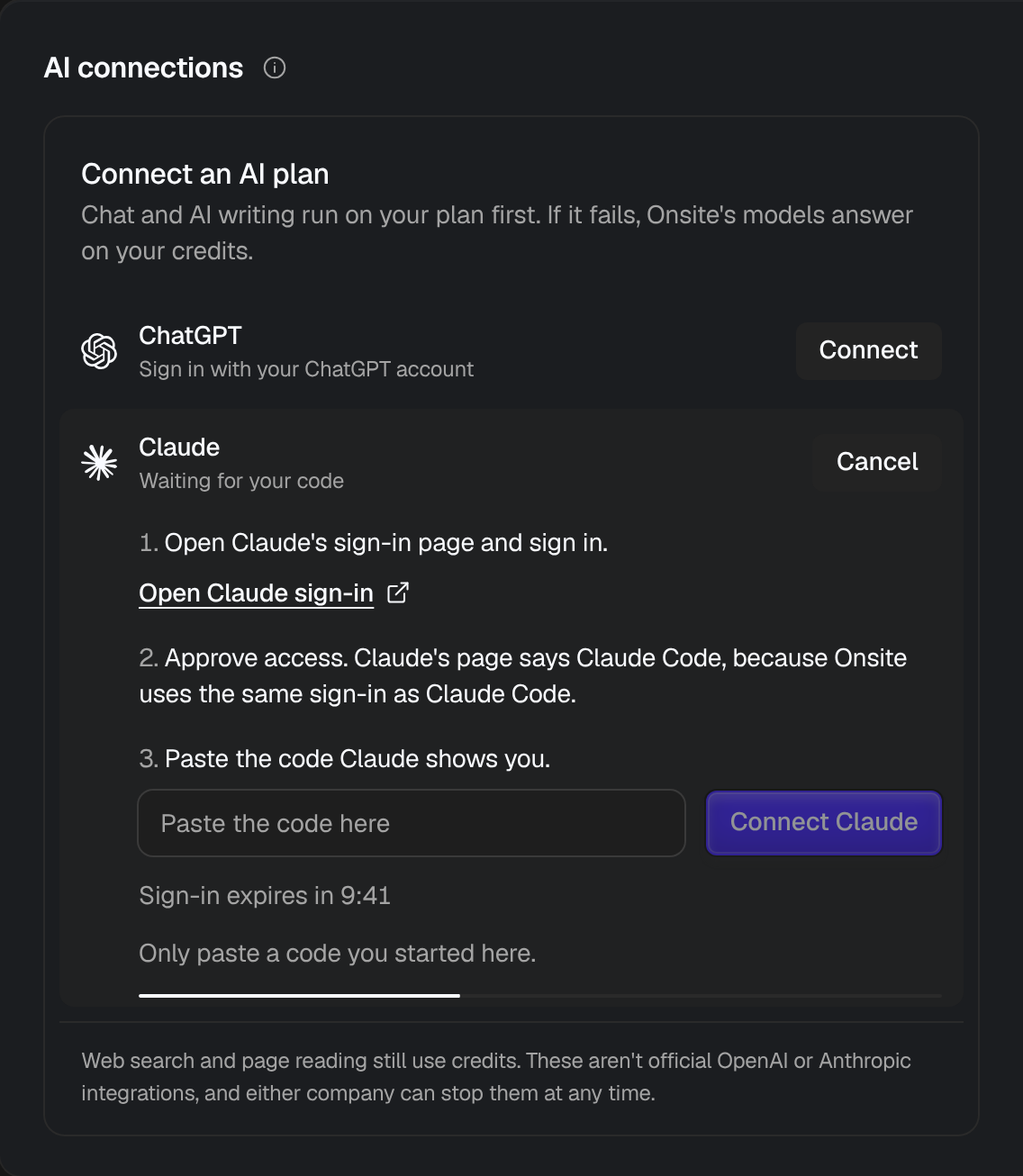
The steps Onsite shows after you choose Connect Sign in to Claude
Choose Open Claude sign-in. Claude’s sign-in page opens in a new tab. Sign in with the Claude account whose plan you want to use.
If you belong to more than one Claude organization, Claude asks which one to use. Pick the one with the plan.
Approve access
Choose Authorize on Claude’s page.
Claude’s page mentions Claude Code. That’s expected: Onsite signs in the same way as Claude Code.
Copy the code Claude shows you
After you approve, Claude shows a long code. Copy all of it with the copy button next to it.
Paste it into Onsite
Back in Onsite, paste the code into the box and choose Connect Claude. Only paste a code from a sign-in you started in Onsite yourself.
The Claude row shows Connected and the date you signed in.
Check it worked
Section titled “Check it worked”The Claude row in Settings › AI connections shows Connected and Signed in with today’s date.
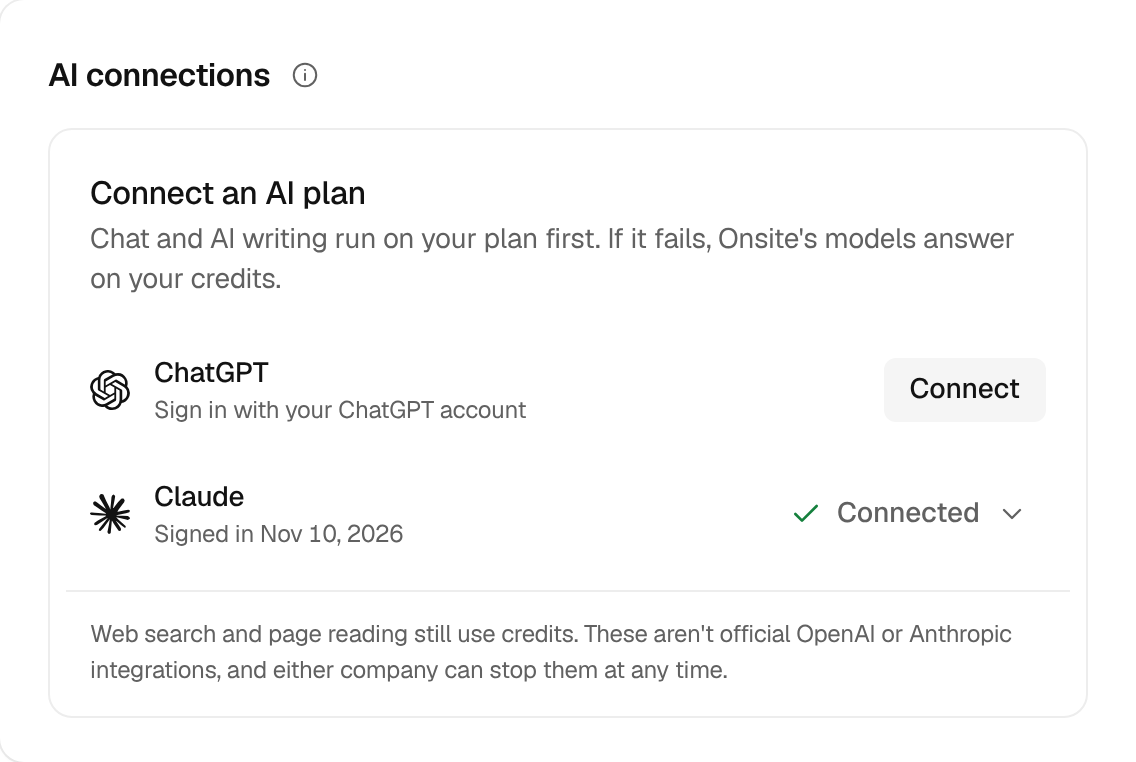
Now open Ask Onsite (top right, or ⌘J) and ask a question about one of your sites. Claude answers. You don’t need to pick a model.
Answers from Claude can take a few seconds longer to start than answers from ChatGPT, and appear all at once rather than word by word.
Switch to another Claude account
Section titled “Switch to another Claude account”- In Settings › AI connections, choose Connected on the Claude row, then Disconnect.
- Choose Connect and follow the steps again. If Claude’s page signs you in to the old account, sign out of Claude in that browser first.
Disconnect Claude
Section titled “Disconnect Claude”In Settings › AI connections, choose Connected on the Claude row, then Disconnect.
Ask Onsite goes straight back to Onsite’s own models and your credits, or to ChatGPT if that’s connected. Your chats, notes and settings stay as they are.
If something goes wrong
Section titled “If something goes wrong”Sign-in timed out
The sign-in stays open for 10 minutes. Choose Retry or Connect to start a new one, and paste the code soon after Claude shows it.
Code not accepted
The code didn’t match this sign-in. Make sure you copied the whole code with Claude’s copy button, and that it came from the sign-in you started in Onsite. If it still fails, choose Connect to start again.
My Claude account won't connect
A free Claude account can’t be connected. On a Team or Enterprise plan, your seat needs to include Claude Code. Ask your Claude admin, or connect a personal Pro or Max account.
Ask Onsite still uses credits after I connected Claude
If ChatGPT is connected too, ChatGPT answers first. Disconnect ChatGPT to use Claude. Web search and page reading always use credits.
More fixes, including plan limits, are in Fix a ChatGPT or Claude connection.